MiniMax H4 AI sticker generator for bold little expressions
A sticker has little space to make its point. Use the MiniMax H4 AI sticker generator for an expressive character or compact visual joke. Begin with GPT Image 2 text mode at 1:1 and 1K. Give the MiniMax H4 AI sticker generator a simple silhouette and one emotion before refining the smaller details.
Image workspace
Sample Image
 24 / 30
AI-generated otter mascot concept with a leafy sprig.
Introduction
Give the MiniMax H4 AI sticker generator one clear reaction
Choose a specific reaction for the MiniMax H4 AI sticker generator rather than asking for a decorative miniature scene.
Make the emotion visible
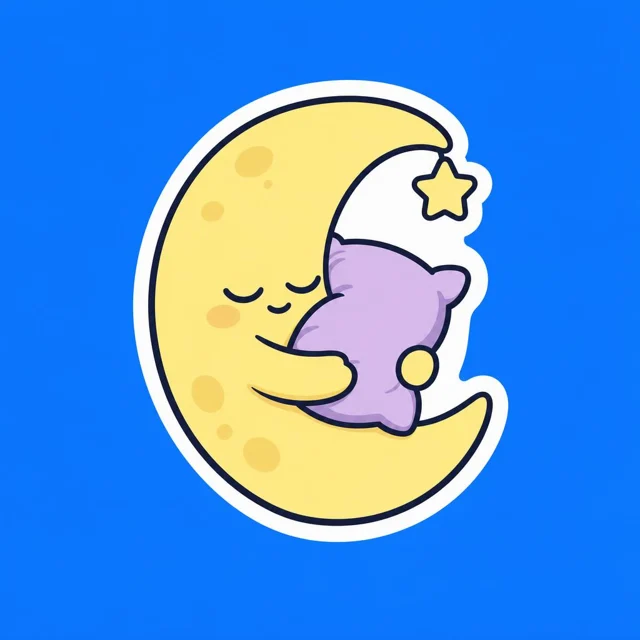
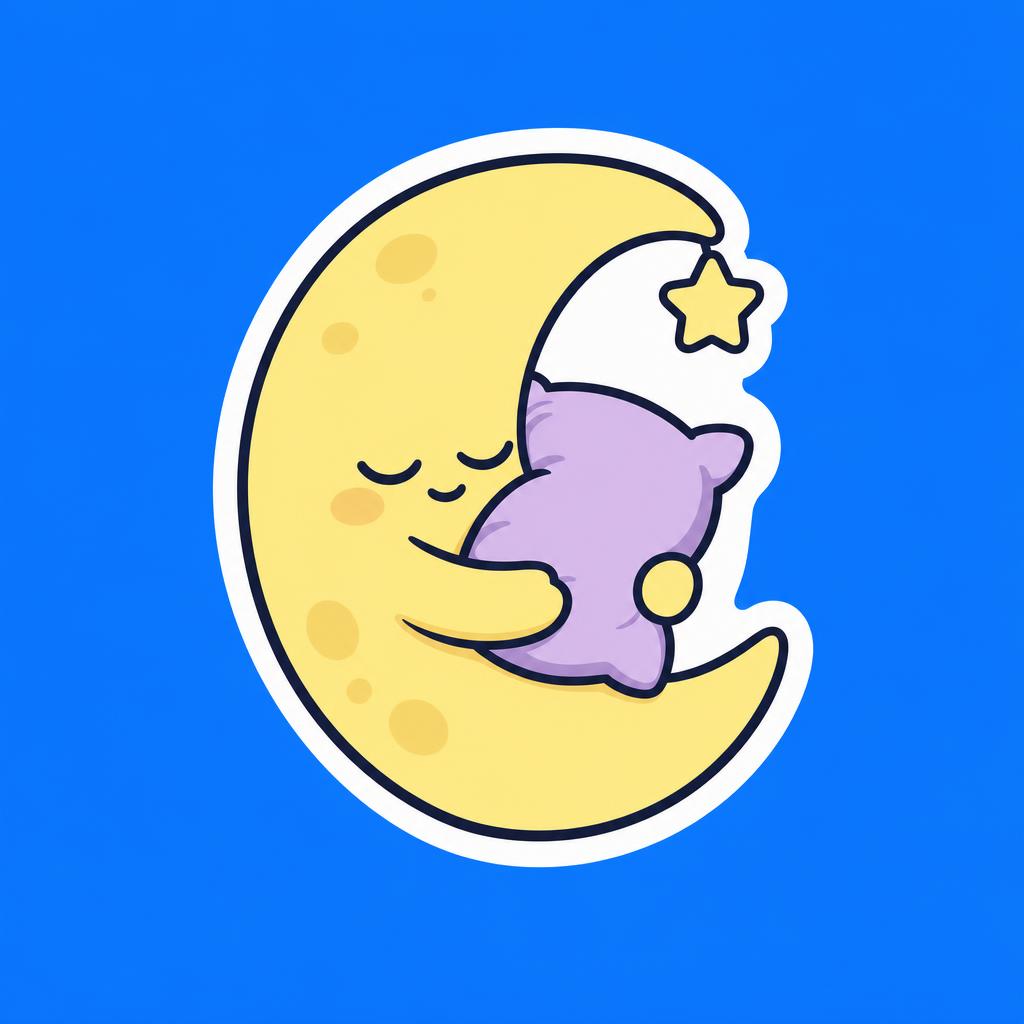
A sleepy moon hugging a pillow communicates differently from a triumphant mushroom raising both arms. Tell the MiniMax H4 AI sticker generator what the character feels and how its pose shows it. An obvious gesture helps the design read without a caption explaining the joke.
- Choose one emotion and a pose that clearly expresses it.
- Keep the MiniMax H4 AI sticker generator focused on that single reaction.
Choose one memorable feature
Give an original character a striped scarf, square glasses, or a distinctive leaf-shaped hat. Ask the MiniMax H4 AI sticker generator to make that feature large enough to survive reduction. Too many accessories can make a tiny character resemble a bundle of unrelated shapes.
Decide whether words are necessary
Try the design without words first. If a phrase adds something essential, keep it short and check every character afterward. The MiniMax H4 AI sticker generator may render lettering incorrectly, so plan to refine important text separately rather than relying on a long embedded sentence.
How to use
How to use the MiniMax H4 AI sticker generator
- PromptSTEP 1
Choose one expression
Open GPT Image 2 text mode in the MiniMax H4 AI sticker generator and describe one original character with a clear, readable expression.
- ModelGPT Image 21K1:1PromptSTEP 2
Shape the outline
Brief the MiniMax H4 AI sticker generator on a strong contour, white border, and generous outer margin, avoiding tiny detached decorative details.
- Detail
 STEP 3
Generate the artwork
Start the MiniMax H4 AI sticker generator at square 1K, check the displayed credits, and generate a simple design against a contrasting background.
- Create an original sticker concept of a sleepy crescent moon hugging a small lavender pillow. Closed eyes, a gently relaxed mouth, compact rounded arms, and one tiny star attached visually to the main silhouette. Clean bold outline, pale yellow and lavender palette, minimal shading, continuous white outer border, and generous space outside the border. Plain medium blue background for easy visual inspection. Square composition. No words, logo, scattered sparkles, fine hairlines, or printed product mockup.DownloadSTEP 4
Prepare the next stage
Review MiniMax H4 AI sticker generator artwork at small size; download the JPEG concept and use separate background removal when transparency is needed.
Features
Build a clean MiniMax H4 AI sticker generator silhouette
Ask the MiniMax H4 AI sticker generator for a compact outline with clear edges, connected parts, and comfortable internal spaces.
Bring important parts together
Keep arms, ears, tools, and props close enough to form a readable cluster. The MiniMax H4 AI sticker generator can explore lively poses, but a long thin tail or isolated sparkle may feel disconnected. Look for a compact whole rather than many floating fragments.
- Use a simple pose before introducing elaborate movement lines.
- Check the MiniMax H4 AI sticker generator outline against a plain background.
Separate overlapping forms
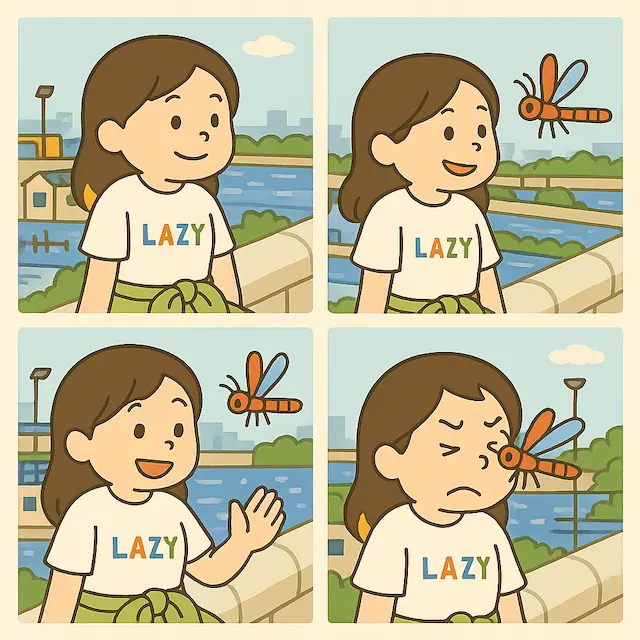
An arm against a body needs enough contrast to remain visible. Describe distinct color areas or a clean line between them to the MiniMax H4 AI sticker generator. Inspect tiny gaps around handles, glasses, and fingers; those are easy places for shapes to merge.
Simplify decorative details
Choose two large freckles instead of a spray of tiny dots, or one leaf vein rather than a network of hairlines. Direct the MiniMax H4 AI sticker generator toward details that support recognition. Fine texture can look attractive enlarged while adding very little at actual sticker size.

Control borders in the MiniMax H4 AI sticker generator
Describe a visible border to the MiniMax H4 AI sticker generator while keeping artwork separate from a production cutting path.
Use an even outer border
Request a continuous white or cream border around the character with a restrained dark outer edge. Review the MiniMax H4 AI sticker generator result for sudden thickness changes and missing sections. The border should support the shape rather than become the most noticeable part of it.
- Leave breathing room outside the border inside the square image.
- Ask the MiniMax H4 AI sticker generator for a continuous, uncomplicated perimeter.
Keep detail away from the edge
Leave visible space between important features and the outer boundary. In an MiniMax H4 AI sticker generator concept, this gives a printer or designer room to prepare the final artwork. The actual safety margin depends on the chosen production process, not a guessed universal measurement.
Distinguish outline from cutting geometry
A white border in a JPEG is drawn artwork, not a machine-readable cut line. The MiniMax H4 AI sticker generator does not create a print die or verified contour path. Keep the visual design stage separate from the printer-specific preparation of cutting and bleed information.
Build a set with the MiniMax H4 AI sticker generator
Give the MiniMax H4 AI sticker generator shared character rules and distinct expressions so each design contributes something to the set.
Write a short character recipe
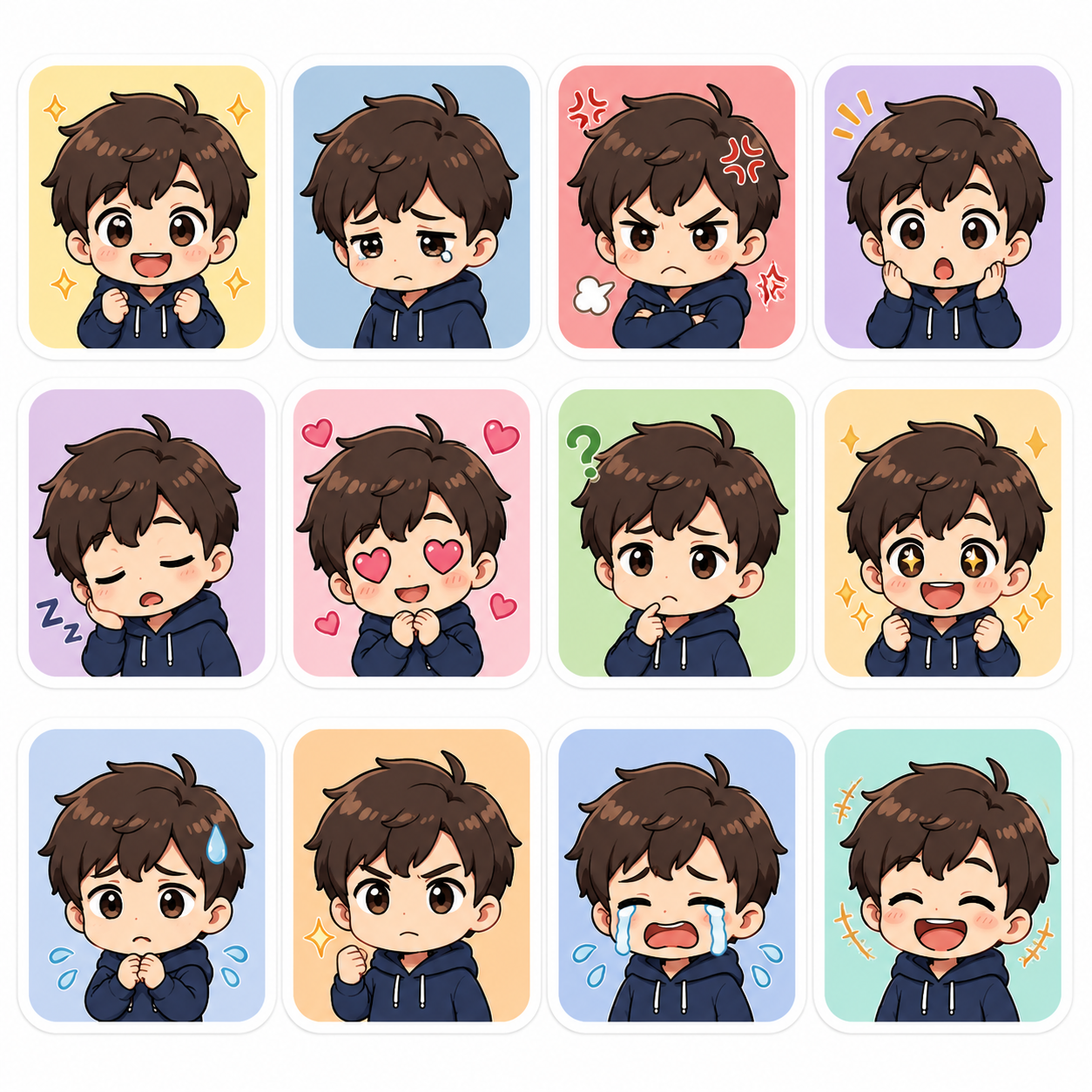
Record the character’s proportions, palette, outline thickness, and signature accessory. Reuse those choices in the MiniMax H4 AI sticker generator while changing the emotion. A pleased, puzzled, and sleepy version should feel related without becoming three nearly identical images with different mouth shapes.
- Keep the same few defining colors across the collection.
- Compare MiniMax H4 AI sticker generator results together before approving a set.
Use references when revising
Switch to reference image editing when an approved character should guide the next request. Tell the MiniMax H4 AI sticker generator which traits matter most. GPT Image 2 accepts up to sixteen references in image mode, but consistency still needs visual review across the finished selections.
Assign each sticker a purpose
Plan a welcome, a thank-you, a celebration, and a gentle refusal rather than generating random variations. This gives the MiniMax H4 AI sticker generator a different communication task each time. Remove designs that look attractive but add no useful expression to the collection.
Try a focused MiniMax H4 AI sticker generator request
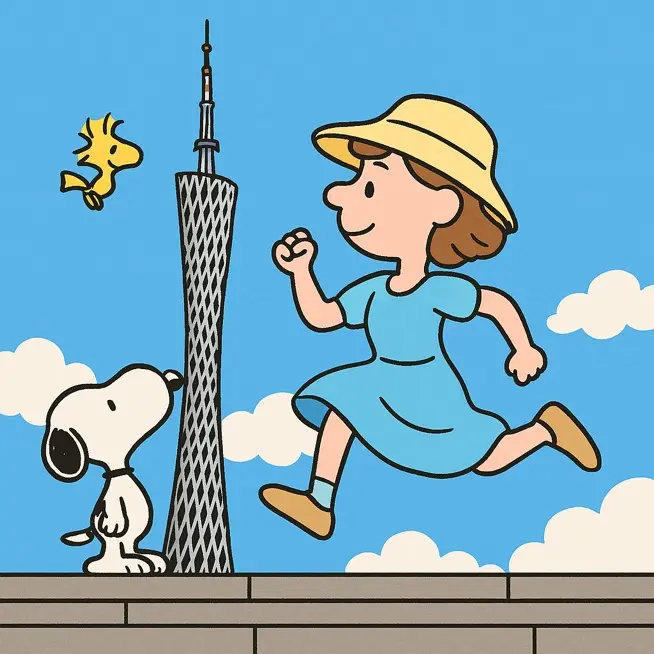
Use the MiniMax H4 AI sticker generator to resolve shape and expression before adding texture, scenery, or elaborate accessories.
Start with a simple square
Choose GPT Image 2 in text mode at 1:1 and 1K, with one output to begin. Describe the character, emotion, pose, border, and plain background. Check the MiniMax H4 AI sticker generator configuration and the displayed credits before submitting the request.
- Keep decorative scenery outside the first character study.
- Give the MiniMax H4 AI sticker generator a readable central subject.
Compare at small viewing size
Reduce the preview in your own viewing or design workflow and inspect the face first. If the emotion disappears, ask the MiniMax H4 AI sticker generator for larger eyes, a simpler mouth, or a stronger pose. More rendering detail will not solve an unclear expression.
Revise the weakest part
Change one issue such as a crowded outline, ambiguous hand, or uneven border. The MiniMax H4 AI sticker generator supports multiple ratios, 1K, 2K, or 4K, and one to four outputs. Choose settings deliberately rather than using extra outputs to avoid a clear revision brief.
Finish the MiniMax H4 AI sticker generator concept appropriately
Check the MiniMax H4 AI sticker generator artwork and its file format against the needs of the intended digital or printed destination.
Understand the JPEG background
The shared workspace returns JPEG images, which do not carry a transparent background. A plain white backdrop from the MiniMax H4 AI sticker generator remains part of the file. Inspect the artwork on the destination background instead of assuming an apparently empty area will disappear.
- Keep an untouched copy of the selected JPEG concept.
- Treat MiniMax H4 AI sticker generator background cleanup as a separate step.
Use a removal step when needed
For a transparent asset, switch to Bria background removal and submit the selected image as a separate task. Inspect its transparent PNG for lost white borders or missing small parts. The MiniMax H4 AI sticker generator itself does not provide a guaranteed transparent sticker result.
Prepare printing with the supplier
Share the desired size, material, and intended border with your printer or finishing designer. The MiniMax H4 AI sticker generator image is a visual starting point, not a verified manufacturing file. Ask the supplier to establish the actual cut path, safety margin, and any required bleed.
Example prompts
A sleepy moon with a bold outline
Create an original sticker concept of a sleepy crescent moon hugging a small lavender pillow. Closed eyes, a gently relaxed mouth, compact rounded arms, and one tiny star attached visually to the main silhouette. Clean bold outline, pale yellow and lavender palette, minimal shading, continuous white outer border, and generous space outside the border. Plain medium blue background for easy visual inspection. Square composition. No words, logo, scattered sparkles, fine hairlines, or printed product mockup.
A grateful mushroom character
Create an original cheerful mushroom sticker character holding a small heart with both hands. Warm red cap with three large cream spots, short rounded stem body, bright simple eyes, and a clear grateful smile. Compact pose, distinct hands, one consistent dark outline, and an even cream border following the silhouette. Flat colors with only a little soft shading. Plain light gray background, square image. No text, extra characters, detached ornaments, cutting paths, packaging, or scenery.
User reviews
MiniMax H4 creator workflow examples.
MiniMax H4 creator workflows

Create a short MiniMax H4 game scene using a character reference and a clear action. Compare the generated character, interface details, and motion with the source before using the result.

Explore an animation look in MiniMax H4 with a focused visual brief. Keep a style reference, test one motion at a time, and inspect consistency between shots.

Use product photographs to plan a MiniMax H4 listing video. Review the actual packaging, visible labels, and generated audio; assess campaign results using your own measurements.

Prepare a short MiniMax H4 vertical video with one subject and one visible change. Choose the ratio, preview the complete clip, and revise the prompt before publishing.

Choose an available editing model in MiniMax H4 and describe the intended change. Check preserved details, lighting, and frame continuity against the original recording.

Build a MiniMax H4 shot study before a shoot. Describe framing and camera movement, review each draft, and keep the result as a planning aid rather than a guarantee of the final shot.
MiniMax H4 Pricing and Credit Plans
Cancel anytime
Lite
50% off0.025 / credit
Billed $ yearly179· Save $179.8
Video Models



Image Models



- Includes MiniMax H4 and all premium models
- Up to 1 batch generation task
- Standard generation speed
- Standard generation success rate
- Standard customer support
- Commercial Use License
Standard
50% off0.017 / credit
Billed $ yearly299· Save $299.8
Video Models
Image Models
- Includes MiniMax H4 and all premium models
- Up to 4 batch generation tasks
- Priority processing speed
- High generation success rate
- Priority customer support
- Commercial Use License
Pro
50% off0.014 / credit
Billed $ yearly599· Save $599.8
Video Models
Image Models
- Includes MiniMax H4 and all premium models
- Up to 10 batch generation tasks
- Fastest generation speed
- High generation success rate
- Dedicated account manager
- Commercial Use License
Max
50% off0.012 / credit
Billed $ yearly1,199· Save $1,199.8
Video Models
Image Models
- Includes MiniMax H4 and all premium models
- Up to 10 batch generation tasks
- Fastest generation speed
- High generation success rate
- Dedicated account manager
- Commercial Use License
Pay safely and securely with






















FAQ
Frequently asked questions
Does the MiniMax H4 AI sticker generator create transparent files?
The MiniMax H4 AI sticker generator returns JPEG artwork in this workspace. For transparency, use a separate Bria background-removal task and inspect its PNG output. Check that white borders, small accessories, and interior openings have survived; removal should not be assumed perfect for every design.
Can the MiniMax H4 AI sticker generator make a matching pack?
You can develop a pack by reusing a character reference and a short style recipe while varying expressions. Compare every selected image for proportions, color, and border treatment. The workflow explores related images; it does not lock character consistency automatically.
Can I print an MiniMax H4 AI sticker generator design directly?
Treat the image as artwork that still needs production preparation. Your printer should confirm the required dimensions, bleed, cutting path, and safe areas for the chosen material and process. A visible outline is not a verified die-cut path or manufacturing instruction.
How much text should an MiniMax H4 AI sticker generator design contain?
Use only what the reaction needs, often a short phrase or no words at all. Check spelling and readability after generation. For essential wording, refine the text separately in your design workflow so a distorted letter does not weaken the entire sticker.
Which MiniMax H4 AI sticker generator settings should I start with?
Begin with GPT Image 2 text mode at 1:1 and 1K. You can adjust the ratio, choose 2K or 4K, or request one to four outputs. Check the credits displayed for the selected configuration before submitting and review the result at its intended viewing size.
CTA
Give the MiniMax H4 AI sticker generator one expressive idea
Pick a character and a reaction worth sending. Use the MiniMax H4 AI sticker generator to build a clear silhouette, then review the small-size expression and the finishing steps your destination needs.
Create a sticker concept