MiniMax H4 HappyHorse 1.1 for Expressive Scenes in More Frame Shapes
Build a scene around the space it needs. MiniMax H4 HappyHorse 1.1 on H3 Max turns a written idea or one starting image into a short video, with nine text-mode aspect ratios for compositions that deserve more than an automatic crop.
Video workspace
The wooden elevator opens
28/45View prompt
Five-second continuous frontal shot of closed wooden elevator doors opening slowly to reveal one adult woman standing inside. Keep the camera fixed at eye level and the woman relaxed, facing forward. Preserve a simple, balanced composition with warm wood grain and soft interior light. End with the doors open and the woman still standing.
Introduction
What Is MiniMax H4 HappyHorse 1.1?
MiniMax H4 HappyHorse 1.1 is Alibaba’s video generation model for creating moving scenes from descriptions or animating an image that supplies the opening frame.
A model with two visual starting points
The official Happy Horse 1.1 services separate text-to-video from image-to-video. MiniMax H4 HappyHorse 1.1 can therefore begin with an imagined setting or with a picture whose appearance already matters. Describe an original scene when exploration is the goal; supply an image when the subject, clothing, environment, or product arrangement should guide the first impression.
MiniMax H4 HappyHorse 1.1 on H3 Max
Choose text or image mode, 720p or 1080p output, and an integer duration from 3 to 15 seconds. A seed is available for organizing comparisons. MiniMax H4 HappyHorse 1.1 offers nine aspect ratios in text mode, while image mode uses one picture. These options support deliberate shot development without requiring a collection of references.
How to use
How to Create with MiniMax H4 HappyHorse 1.1
- PromptSTEP 1
Choose your starting point
Select MiniMax H4 HappyHorse 1.1 and choose text or image mode. Write the scene from scratch, or add one picture that already shows the subject and opening composition you need.
- ModelHappyHorse 1.11080p16:95sPromptSTEP 2
Describe one useful movement
Give MiniMax H4 HappyHorse 1.1 a main action, a camera direction, and a finishing state. In image mode, emphasize the change while identifying the important visual details that should remain recognizable.
- First frameLast frame
 0.0s
0.0s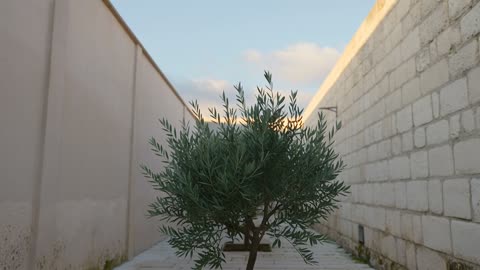 2.6s
2.6s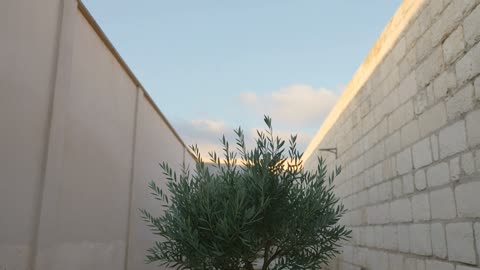 4.6sSTEP 3
Set the output
Choose 720p or 1080p and a duration from 3 to 15 seconds. For MiniMax H4 HappyHorse 1.1 text generation, select the aspect ratio. Record a seed when organizing comparisons, then check credits.
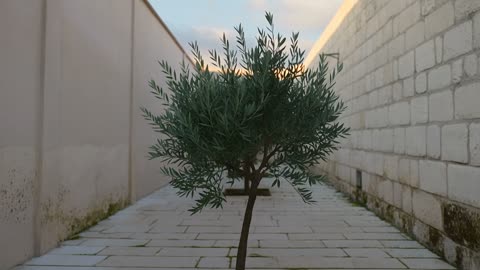
- Text mode: A tall, narrow courtyard with pale stone walls and a small olive tree near the bottom of the composition. The camera rises slowly to reveal a strip of open sky. Gentle morning light, restrained leaf movement, one continuous shot, no people, signs, or scene cuts.DownloadSTEP 4
Generate and evaluate
Submit the MiniMax H4 HappyHorse 1.1 request after checking the configuration. Watch the complete clip, inspect important details, and revise one issue at a time before selecting footage for your project.
Features
Compose MiniMax H4 HappyHorse 1.1 Across Nine Text-Mode Ratios
An unusually wide or tall scene changes where attention travels. MiniMax H4 HappyHorse 1.1 lets the initial composition follow that intention before movement begins.
Choose width, height, or a balanced frame
The text-mode choices are 16:9, 9:16, 1:1, 4:3, 3:4, 21:9, 9:21, 5:4, and 4:5. Use MiniMax H4 HappyHorse 1.1 to explore a narrow architectural opening, a broad landscape, or a compact editorial composition. Place the subject deliberately within that space rather than asking every shape to accommodate an identical arrangement.
Make the edges part of the direction
A wider frame can let a figure enter gradually; a tall frame can make a suspended object the center of attention. Tell MiniMax H4 HappyHorse 1.1 which edges should remain quiet and where movement may occur. Reserve clear space for any text you plan to add later, and inspect the complete frame throughout playback.
Give MiniMax H4 HappyHorse 1.1 a Recognizable Opening Image
A starting picture establishes visual priorities that words might leave open. With MiniMax H4 HappyHorse 1.1, the next decision is what should move.
Prepare one image with room for motion
Choose a sharp source with the intended subject clearly visible. Leave space for a sleeve to turn, leaves to sway, or the camera to approach. MiniMax H4 HappyHorse 1.1 uses a single image here, not a multi-image reference board. Check the crop before uploading, particularly when an important hand, handle, or silhouette sits near an edge.
Direct MiniMax H4 HappyHorse 1.1 beyond the first frame
Describe the change rather than repeating every detail already present in the picture. A curtain might lift slightly while the chair beneath it remains still. MiniMax H4 HappyHorse 1.1 needs an intelligible relationship between the visible arrangement and the requested motion. Review identity, shape, and lighting through the clip; an accurate opening is not a guarantee about later frames.
Pace a Complete MiniMax H4 HappyHorse 1.1 Moment
Choose from 3 through 15 seconds in whole-second steps. MiniMax H4 HappyHorse 1.1 can then be directed around a clear event rather than an overloaded sequence.
Use a short beat for an immediate impression
For a three-second insert, make the point visible from the beginning: a glass catching light, a doorway opening slightly, or fabric settling. Ask MiniMax H4 HappyHorse 1.1 for one readable development. An elaborate entrance followed by several actions may leave the essential moment unfinished, even when the individual frames look appealing.
Let a longer scene breathe
A longer clip can establish a setting, carry a measured movement, and finish with a pause. Plan where that pause belongs before requesting MiniMax H4 HappyHorse 1.1. For example, a slow lateral move might reveal a window and settle on the view beyond. Judge whether the arrival feels intentional instead of accepting motion that simply stops.
Review MiniMax H4 HappyHorse 1.1 at the Intended Output Size
Output size and visual accuracy answer different questions. MiniMax H4 HappyHorse 1.1 provides 720p and 1080p choices, while your review decides whether the scene works.
Check structure before fine texture
Look first at the subject’s proportions, contact with the ground, and position within the scene. Then examine fine details at the chosen output size. A MiniMax H4 HappyHorse 1.1 clip with crisp texture still needs sensible motion. Pay attention to anything that identifies a real object, especially labels, seams, handles, or repeated decorative elements.
Watch the movement at normal speed
Pause to inspect difficult frames, but also watch uninterrupted playback. MiniMax H4 HappyHorse 1.1 should be assessed for sudden jumps, drifting scale, and distracting background changes that isolated stills can hide. Compare the beginning, midpoint, and ending against your original intention. Keep the strongest part of the brief when revising rather than adding several competing instructions.
Build a Clear MiniMax H4 HappyHorse 1.1 Comparison
An organized comparison makes revisions easier to explain. Keep the MiniMax H4 HappyHorse 1.1 scene, duration, and output settings consistent while testing one creative decision.
Record the MiniMax H4 HappyHorse 1.1 seed
Save the seed alongside the prompt and any source image. It is a useful reference for comparing requests, not a promise of pixel-identical results. When testing MiniMax H4 HappyHorse 1.1, change one element such as camera direction or the scale of the subject’s movement. Otherwise, a better result may be difficult to attribute to a particular choice.
Approve a shot for its actual purpose
Decide what counts as success before another request: a readable silhouette, a calmer camera, or a clean ending. Review the credits shown for MiniMax H4 HappyHorse 1.1 before generating. Keep the selected clip together with its brief and settings so later edits begin from a known decision, not from an approximate memory of what worked.
Example prompts
A narrow architectural reveal
Text mode: A tall, narrow courtyard with pale stone walls and a small olive tree near the bottom of the composition. The camera rises slowly to reveal a strip of open sky. Gentle morning light, restrained leaf movement, one continuous shot, no people, signs, or scene cuts.
Fabric moving at a window
Image mode: Use the uploaded picture as the opening composition. A light curtain lifts gently beside the seated subject and settles again. Keep the subject’s appearance, clothing, and position recognizable. Use a restrained camera approach, consistent daylight, and no new accessories or text.
A wide display in evening light
Text mode: A long wooden display table holds three unbranded ceramic vessels with generous empty space between them. Move slowly from left to right as evening light crosses the surfaces. Keep the vessels stationary and their proportions stable. End on the smallest vessel with a brief pause.
User reviews
MiniMax H4 creator workflow examples.
MiniMax H4 creator workflows

Create a short MiniMax H4 game scene using a character reference and a clear action. Compare the generated character, interface details, and motion with the source before using the result.

Explore an animation look in MiniMax H4 with a focused visual brief. Keep a style reference, test one motion at a time, and inspect consistency between shots.

Use product photographs to plan a MiniMax H4 listing video. Review the actual packaging, visible labels, and generated audio; assess campaign results using your own measurements.

Prepare a short MiniMax H4 vertical video with one subject and one visible change. Choose the ratio, preview the complete clip, and revise the prompt before publishing.

Choose an available editing model in MiniMax H4 and describe the intended change. Check preserved details, lighting, and frame continuity against the original recording.

Build a MiniMax H4 shot study before a shoot. Describe framing and camera movement, review each draft, and keep the result as a planning aid rather than a guarantee of the final shot.
MiniMax H4 Pricing and Credit Plans
Cancel anytime
Lite
50% off0.025 / credit
Billed $ yearly179· Save $179.8
Video Models



Image Models



- Includes MiniMax H4 and all premium models
- Up to 1 batch generation task
- Standard generation speed
- Standard generation success rate
- Standard customer support
- Commercial Use License
Standard
50% off0.017 / credit
Billed $ yearly299· Save $299.8
Video Models
Image Models
- Includes MiniMax H4 and all premium models
- Up to 4 batch generation tasks
- Priority processing speed
- High generation success rate
- Priority customer support
- Commercial Use License
Pro
50% off0.014 / credit
Billed $ yearly599· Save $599.8
Video Models
Image Models
- Includes MiniMax H4 and all premium models
- Up to 10 batch generation tasks
- Fastest generation speed
- High generation success rate
- Dedicated account manager
- Commercial Use License
Max
50% off0.012 / credit
Billed $ yearly1,199· Save $1,199.8
Video Models
Image Models
- Includes MiniMax H4 and all premium models
- Up to 10 batch generation tasks
- Fastest generation speed
- High generation success rate
- Dedicated account manager
- Commercial Use License
Pay safely and securely with























FAQ
Frequently asked questions
What can I create with MiniMax H4 HappyHorse 1.1?
Develop short visual scenes from text or animate a single image. Useful briefs include an editorial moment, an environmental reveal, or a restrained product movement. Results need review against the subject and action you intended.
Which sizes does MiniMax H4 HappyHorse 1.1 support here?
The H3 Max workspace provides 720p and 1080p. Choose the size that suits your planned use and examine the resulting detail. MiniMax H4 HappyHorse 1.1 output size does not certify object accuracy or eliminate the need for review.
How long can a MiniMax H4 HappyHorse 1.1 clip be?
Choose any integer duration from 3 to 15 seconds. Keep the action proportionate to that time. A short clip can hold one visual beat, while a longer selection allows a more gradual development and finish.
Can MiniMax H4 HappyHorse 1.1 use several reference pictures?
This page supports one image in image mode. It does not provide a multi-image or multi-person reference workflow. Prepare a single coherent opening composition rather than relying on separate uploads to establish different subjects.
Are all nine MiniMax H4 HappyHorse 1.1 ratios available in image mode?
The nine listed aspect ratios describe text generation. For an image-based request, prepare the source around the intended composition. Do not assume that text-mode layout choices establish identical controls for a supplied photograph.
Does MiniMax H4 HappyHorse 1.1 provide audio controls on H3 Max?
The current MiniMax H4 HappyHorse 1.1 workspace does not expose an audio switch or audio-reference input. Plan this workflow around visual generation rather than a promised audio feature or an uploaded recording.
How should I compare MiniMax H4 HappyHorse 1.1 revisions?
Keep the source, settings, and seed recorded, then change one instruction. Evaluate the full scene rather than a single attractive frame. Check the displayed credits before each request; the page does not promise an exact turnaround time.
CTA
Shape Your Next MiniMax H4 HappyHorse 1.1 Scene
Choose a visual starting point and one meaningful change. Set up MiniMax H4 HappyHorse 1.1, review the credits, and judge the complete result.
Open MiniMax H4 HappyHorse 1.1