MiniMax H4 Compress Image Online for Free
Make image files easier to share without sending your photos to a server. MiniMax H4 Compress Image processes supported pictures in your browser and keeps their original format. Use MiniMax H4 Compress Image for a single attachment or a batch, compare the resulting sizes, and download individual files or one ZIP.
Compress Image workspace
Drop or paste a JPG, PNG or WebP · up to 30 MB each
Up to 8192 pixels per side and 32 megapixels · up to 20 images
Free · Sign in to process · Inputs and results are saved to your account.
Introduction
What Is MiniMax H4 Compress Image?
MiniMax H4 Compress Image can reduce a photo's file size in KB or MB without changing its width or height. Choose a picture that is too large for an email attachment, then save a smaller version when compression helps.
Smaller files for everyday sharing
A large picture can be awkward to attach to a message or submit through an upload form. MiniMax H4 Compress Image gives you a local way to reduce that file before sharing it elsewhere, while keeping the original pixel dimensions and familiar file extension.
Use MiniMax H4 Compress Image when the picture already has the right framing and size, but the file occupies more space than you need. Resizing, cropping, and format conversion solve different problems. Compression alone does not promise that a particular website will accept the result.
- Prepare lighter attachments before opening your email composer.
- Keep the same picture dimensions and original format.
Your browser handles the pictures
MiniMax H4 Compress Image processes pictures in your browser after sign-in. Inputs and results are uploaded to your account for task review. No subscription, credit deduction, or paid cloud model is required. Keep your source and inspect the result before using it elsewhere.
This local workflow keeps your selected pictures out of a server conversion queue. MiniMax H4 Compress Image can still take time with large files or a busy device, so keep the page available while processing and save the outputs before closing your session.
- Choose files directly from your own device.
- MiniMax H4 Compress Image processes pictures in your browser after sign-in. Inputs and results are uploaded to your account for task review. No subscription, credit deduction, or paid cloud model is required. Keep your source and inspect the result before using it elsewhere.

How to use
How to Use MiniMax H4 Compress Image
- Beforebag.jpg
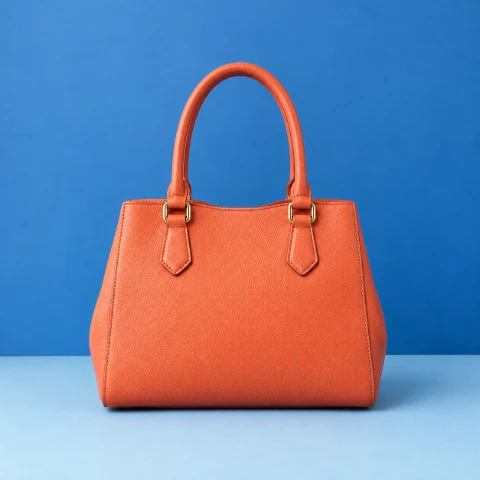 1254 × 1254 px1.63 MBSTEP 1
Choose your pictures
Open MiniMax H4 Compress Image and select up to 20 static JPG, PNG, or WebP files that meet the per-file size and pixel limits.
- QualityHighMediumLowSTEP 2
Select a quality level
Choose high, medium, or low in MiniMax H4 Compress Image. For PNG, remember that medium and low use palette quantization and may change color detail.
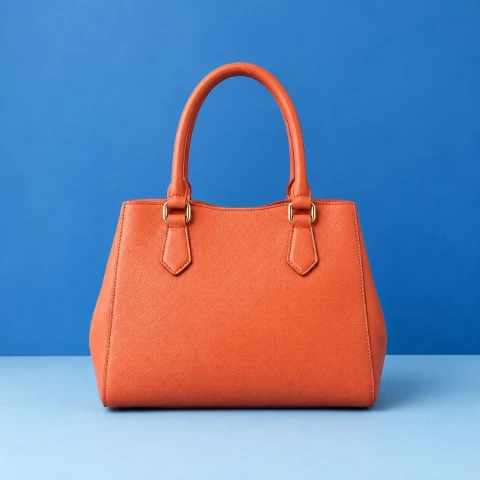 1.63 MB151 KB−91%Same dimensionsSTEP 3
Inspect the results
Run MiniMax H4 Compress Image, compare original and output sizes, and inspect important details. When the new encoding is larger, the original file is retained.
- AfterBefore151 KBDownloadSTEP 4
Download your files
Save individual results or download the batch ZIP from MiniMax H4 Compress Image. Check the files before replacing any originals in your own storage.
Features
MiniMax H4 Compress Image Features: Quality That Matches the Format
MiniMax H4 Compress Image offers high, medium, and low settings, but the meaning of those settings depends on whether the source is JPG, PNG, or WebP.
Balance detail in JPG and WebP
For JPG and WebP, MiniMax H4 Compress Image uses quality settings to control the output encoding. Start with high quality when small text, product textures, or subtle shading matter. A lower setting can reduce file weight further, but may make compression artifacts more noticeable.
Inspect a representative area rather than judging only the thumbnail. MiniMax H4 Compress Image cannot guarantee a particular percentage reduction or a file smaller than your chosen upload limit. The result depends on the source content, its existing compression, and the quality setting you select.
- Check small lettering, gradients, and textured areas closely.
- Use lower quality only when the result remains suitable.
Understand the two PNG approaches
High quality in MiniMax H4 Compress Image uses lossless PNG encoding. Medium and low use palette quantization, which can reduce the number of colors represented in the output. Those smaller palettes may change color detail, especially in photographs, soft gradients, and carefully shaded artwork.
A PNG setting is therefore not simply the same quality slider applied to another extension. MiniMax H4 Compress Image makes these choices available while retaining PNG output. Use high quality when preserving the decoded colors matters more than achieving the smallest possible file.
- High quality uses the lossless PNG encoding path.
- Medium and low may change fine color distinctions.

MiniMax H4 Compress Image Features: Batches and Useful Downloads
MiniMax H4 Compress Image accepts up to 20 files in one batch, with separate results so you can review what happened to each picture before saving.
Review every file in the batch
A batch is convenient when several pictures need the same preparation, but each source compresses differently. MiniMax H4 Compress Image reports original and output file sizes so that an already optimized icon is not confused with a large photograph that has much more room to shrink.
When a newly encoded file would be larger, MiniMax H4 Compress Image keeps the original file instead. This protects against an unhelpful increase; it does not mean every picture will become smaller. A retained original is a valid outcome for an image that is already compact.
- Review size differences separately for every selected image.
- Keep the original when new encoding adds bytes.
Save one result or the whole set
Download a single result when you need only one attachment, or collect the batch in a ZIP. MiniMax H4 Compress Image keeps these two choices separate so you do not have to unpack a full collection just to use one finished picture.
The ZIP is a convenient package, not an additional guarantee of dramatic savings. MiniMax H4 Compress Image has already performed the image compression before the archive is assembled. Keep the source files until you have inspected the downloads and confirmed they suit your intended use.
- Download individual images for immediate use elsewhere.
- Collect the completed batch in one ZIP archive.
MiniMax H4 Compress Image Features: Clear Limits and Predictable Scope
MiniMax H4 Compress Image supports a defined set of static formats and image sizes. These boundaries avoid promising a universal converter or unlimited browser processing capacity.
Check format, file size, and dimensions
Accepted inputs for MiniMax H4 Compress Image are static JPG, PNG, and WebP files up to 30 MB each. An image must also stay within both dimension limits: its longest side cannot exceed 8192 pixels, and its total area cannot exceed 32 megapixels.
MiniMax H4 Compress Image does not process animated images, HEIC, TIFF, SVG, or AVIF. Unsupported inputs are not uploaded for conversion elsewhere. Prepare a supported static file separately rather than assuming that changing a filename extension will make an incompatible image readable.
- Respect both the longest-side and total-pixel limits.
- Use supported static pictures rather than animated files.
Choose compression for the right reason
MiniMax H4 Compress Image is not an AI restoration tool, a background editor, or a target-size guarantee. It does not reconstruct missing detail or improve a blurred subject. Its job is to offer practical encoding choices for a picture you already have.
For a useful review, compare the download with the source at a similar viewing size. MiniMax H4 Compress Image may make a sensible tradeoff for a web illustration that would be unacceptable for detailed artwork. Decide according to the actual destination, not the smallest number alone.
- Prioritize readable details over the lowest possible byte count.
- Keep a separate source copy for future editing.
User reviews
MiniMax H4 creator workflow examples.
MiniMax H4 creator workflows

Create a short MiniMax H4 game scene using a character reference and a clear action. Compare the generated character, interface details, and motion with the source before using the result.

Explore an animation look in MiniMax H4 with a focused visual brief. Keep a style reference, test one motion at a time, and inspect consistency between shots.

Use product photographs to plan a MiniMax H4 listing video. Review the actual packaging, visible labels, and generated audio; assess campaign results using your own measurements.

Prepare a short MiniMax H4 vertical video with one subject and one visible change. Choose the ratio, preview the complete clip, and revise the prompt before publishing.

Choose an available editing model in MiniMax H4 and describe the intended change. Check preserved details, lighting, and frame continuity against the original recording.

Build a MiniMax H4 shot study before a shoot. Describe framing and camera movement, review each draft, and keep the result as a planning aid rather than a guarantee of the final shot.
MiniMax H4 Compress Image is free after sign-in, with no subscription or credits required. Inputs and results are uploaded and saved to your account for task review.
MiniMax H4 Pricing and Credit Plans
Cancel anytime
Lite
50% off0.025 / credit
Billed $ yearly179· Save $179.8
Video Models



Image Models



- Includes MiniMax H4 and all premium models
- Up to 1 batch generation task
- Standard generation speed
- Standard generation success rate
- Standard customer support
- Commercial Use License
Standard
50% off0.017 / credit
Billed $ yearly299· Save $299.8
Video Models
Image Models
- Includes MiniMax H4 and all premium models
- Up to 4 batch generation tasks
- Priority processing speed
- High generation success rate
- Priority customer support
- Commercial Use License
Pro
50% off0.014 / credit
Billed $ yearly599· Save $599.8
Video Models
Image Models
- Includes MiniMax H4 and all premium models
- Up to 10 batch generation tasks
- Fastest generation speed
- High generation success rate
- Dedicated account manager
- Commercial Use License
Max
50% off0.012 / credit
Billed $ yearly1,199· Save $1,199.8
Video Models
Image Models
- Includes MiniMax H4 and all premium models
- Up to 10 batch generation tasks
- Fastest generation speed
- High generation success rate
- Dedicated account manager
- Commercial Use License
Pay safely and securely with






















FAQ
Frequently asked questions
Is MiniMax H4 Compress Image free after signing in?
Yes. MiniMax H4 Compress Image requires sign-in, but no subscription or credits. The original and finished image are saved to your account and included in task history. Paid plans elsewhere on the site are optional for this tool.
Does MiniMax H4 Compress Image upload my pictures?
Yes. MiniMax H4 Compress Image uploads the original and finished image to your account for task review. Processing runs in your browser; it does not call a paid cloud model. Sign in before processing, and keep the page open until saving finishes.
Does MiniMax H4 Compress Image change the file format?
No. MiniMax H4 Compress Image preserves the source format for supported JPG, PNG, and WebP inputs. Use the separate conversion tool when your goal is to change an extension and its actual encoding.
Which PNG setting should I use in MiniMax H4 Compress Image?
Start with high quality in MiniMax H4 Compress Image for lossless PNG encoding. Medium and low use palette quantization, which may reduce file size but can alter fine colors, gradients, or other visual details.
Can MiniMax H4 Compress Image guarantee a specific file size?
No. The final size depends on the picture and its existing encoding. There is no guaranteed reduction percentage or exact target size, and an already compact file may remain unchanged.
How many files can MiniMax H4 Compress Image handle together?
You can select up to 20 files per batch. Each file must be no larger than 30 MB, with a longest side of at most 8192 pixels and at most 32 megapixels overall.
Why did MiniMax H4 Compress Image keep my original file?
The new encoding would have been larger. Keeping the original avoids increasing the file size unnecessarily. It is not an error or a claim that the image has been reduced.
Can MiniMax H4 Compress Image process animated or HEIC files?
No. Supported inputs are static JPG, PNG, and WebP. Animated images, HEIC, TIFF, SVG, and AVIF are outside this workflow, and there is no server conversion fallback for unsupported inputs.
CTA
Start with MiniMax H4 Compress Image
Choose your pictures, compare the size changes, and save only the results you need. MiniMax H4 Compress Image keeps the work local and the download options straightforward.
Choose Images