MiniMax H4 Prompt Seen: turn an image into a usable prompt
Use MiniMax H4 Prompt Seen to describe an image as an editable generation prompt. Upload one photograph or illustration, choose the level of detail and add optional direction. Review the returned subject, composition, lighting and style, then copy the prompt or download it as a text file.
Introduction
What is MiniMax H4 Prompt Seen?
MiniMax H4 Prompt Seen can describe prompt discovery, and similar names appear on public prompt libraries. This MiniMax H4 page focuses on a concrete task: turning an uploaded image into a written prompt.
Define the image-to-prompt task
MiniMax H4 Prompt Seen analyzes what is visible in an image and writes a description that you can adapt for an image generation model. It can describe a red teapot, the linen beneath it and soft window light.
Understand the model used here
This MiniMax H4 Prompt Seen workspace uses Gemini 2.5 Flash through fal’s vision interface. It accepts a normalized image and your optional direction, then returns descriptive text. MiniMax H4 provides the account, task history and credits.
Choose a practical starting image
Start MiniMax H4 Prompt Seen with one photograph or illustration whose subject is easy to identify. A clear product still life or a simple portrait usually provides a useful first test.

How to use
How to use MiniMax H4 Prompt Seen
- STEP 1
Upload one reference
Choose a clear MiniMax H4 Prompt Seen image in JPEG, PNG or WebP format, then upload it and check the visible preview before continuing.
- STEP 2
Choose the prompt style
Select detailed, concise or cinematic MiniMax H4 Prompt Seen output and add optional direction about the subject, materials, composition or lighting you want emphasized.
- STEP 3
Generate the description
Review the MiniMax H4 Prompt Seen credit reservation, sign in and deliberately press Generate prompt; keep the saved request available while its status is checked.
- STEP 4
Review and reuse
Compare the MiniMax H4 Prompt Seen result with your reference, correct unsupported details and copy the prompt or download a text file for your next workflow.

Features
Prepare the MiniMax H4 Prompt Seen reference image
MiniMax H4 Prompt Seen works from the pixels you supply. Choose an image with readable details, then decide which visual information deserves emphasis in the generated description.
Use a clear source
For MiniMax H4 Prompt Seen, a well-lit reference with a visible subject gives you concrete details to inspect in the output. A blurry screenshot or a heavily cropped object may leave the model guessing.
Check the supported formats
Upload one JPEG, PNG or WebP image to MiniMax H4 Prompt Seen. The workspace accepts a file up to ten megabytes and normalizes it to a JPEG with a maximum side of 1024 pixels for analysis.
Keep text and overlays in context
If a MiniMax H4 Prompt Seen image contains signs, labels or interface overlays, decide whether they belong in the visual brief. You can ask the description to emphasize the object, materials and light.

Describe MiniMax H4 Prompt Seen subjects and materials
A MiniMax H4 Prompt Seen result should name visible characteristics rather than invent a hidden story. Examine the subject’s shape, pose and materials before treating the returned text as a useful brief.
Inspect the central object
For a MiniMax H4 Prompt Seen product image, check whether the description identifies the object and its important visible features. A teapot may need a rounded body, short spout and curved handle. Correct unsupported details before copying the result.
Review people and poses
When MiniMax H4 Prompt Seen describes a portrait, review clothing, pose, gaze and the framing around the person. Do not treat the output as a verified identity or personal biography.
Name the material cues
A MiniMax H4 Prompt Seen still-life prompt may describe glossy ceramic, rough linen, transparent glass or brushed metal. Compare those words with the actual image.
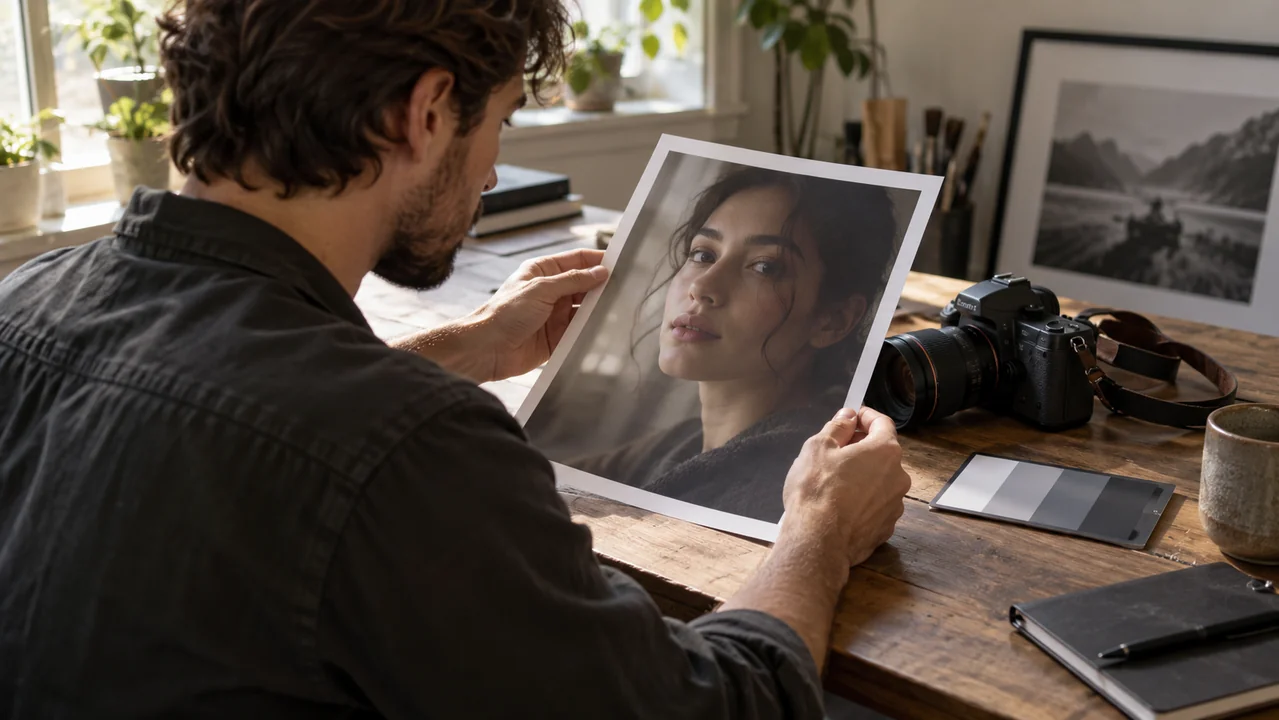
Read MiniMax H4 Prompt Seen composition and light
MiniMax H4 Prompt Seen can turn visual relationships into written direction. Review where objects sit, how the frame is arranged and which lighting cues make the reference recognizable.
Describe the arrangement
Check the MiniMax H4 Prompt Seen output for useful spatial relationships: a vase near the center, flowers extending into open space or a teapot angled toward the viewer. These descriptions help define composition. Remove positioning that the image does not support, especially when the model confuses a foreground object with something in the background.
Separate lighting from color
MiniMax H4 Prompt Seen may describe warm light, soft shadows and a muted palette in the same paragraph. Review each idea separately. A yellow object does not necessarily mean the room has warm lighting. Name the visible light direction and shadow quality when they matter, then describe the colors that make the subject stand out.
Keep photographic claims modest
If MiniMax H4 Prompt Seen suggests a camera lens or film stock, decide whether the reference actually needs that level of specificity. A bitmap rarely proves which equipment created it. A description such as close framing with shallow depth of field can communicate the visible effect without pretending to recover hidden technical settings.

Choose a MiniMax H4 Prompt Seen description style
MiniMax H4 Prompt Seen offers detailed, concise and cinematic descriptions. Select the style for the next task, while keeping the source image’s visible content as the basis of the prompt.
Start with a detailed draft
Use detailed MiniMax H4 Prompt Seen output when you want a broad inventory of subject, setting, composition, materials and light. Read it once beside the image and remove uncertain details. You can then shorten the text for a particular generation model rather than passing an unreviewed description directly into another paid request.
Use concise direction when appropriate
Choose concise MiniMax H4 Prompt Seen output when the next workflow needs a short brief. The shorter result should still identify the subject and the important visual relationship. Add optional direction such as emphasize the ceramic texture or describe the window light when a specific part of the picture matters more than the background.
Apply cinematic language carefully
A cinematic MiniMax H4 Prompt Seen description can emphasize atmosphere, framing and lighting. It remains based on a still image, so it does not establish a video’s movement or timing. If you reuse the text for video generation, add one clear action and a supported duration separately in the video workspace.
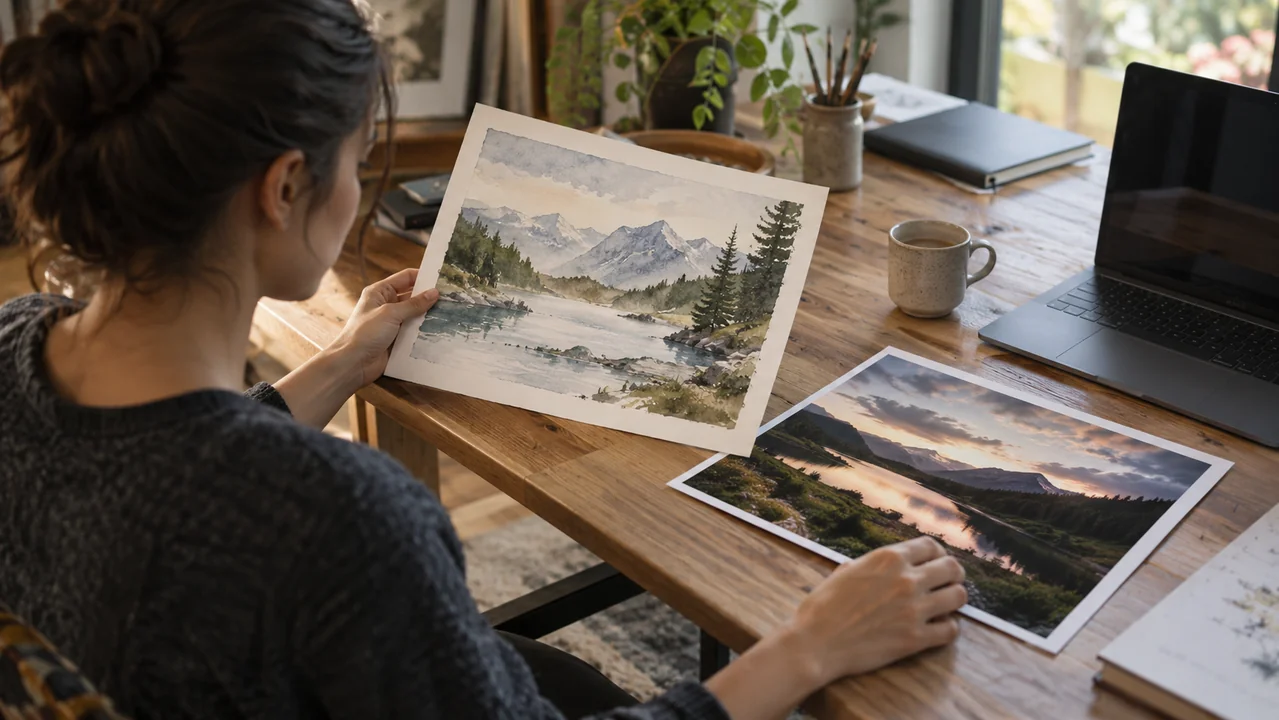
Review and reuse the MiniMax H4 Prompt Seen result
MiniMax H4 Prompt Seen is a starting point for your creative brief. Compare the generated text with the reference, make corrections and save the useful version before moving to another tool.
Check the description against the image
Read the complete MiniMax H4 Prompt Seen result alongside the uploaded picture. Confirm the central subject, object count, arrangement and visible materials. Remove invented details and clarify anything the model omitted. A prompt that matches your intended visual task is more useful than a longer description that mixes accurate observations with guesses.
Copy or download the text
After a successful MiniMax H4 Prompt Seen task, use Copy to place the result on your clipboard or Download TXT to save a text file. The task also appears in your owner-only history. Keep your revised prompt with the reference image so that a teammate can understand which parts of the description you chose to retain.
Review the actual credit charge
MiniMax H4 Prompt Seen reserves up to two credits before the vision request. Successful settlement uses the actual provider cost multiplied by one hundred, rounded up, with a one-credit minimum. Unused reserved credits return automatically. Rejected requests and unusable results refund the reservation; an uncertain submission remains available for status reconciliation without buying a second request.

Practice drafts
MiniMax H4 Prompt Seen product direction
Emphasize the central product, its shape and materials, the background arrangement and the visible light. Avoid inventing brand names, exact camera settings or hidden product claims.
MiniMax H4 Prompt Seen cinematic direction
Describe the visible framing, subject pose, color palette, atmosphere and light direction. Keep the brief grounded in the reference and omit guessed identities or an invented backstory.
User reviews
MiniMax H4 creator workflow examples.
MiniMax H4 creator workflows

Create a short MiniMax H4 game scene using a character reference and a clear action. Compare the generated character, interface details, and motion with the source before using the result.

Explore an animation look in MiniMax H4 with a focused visual brief. Keep a style reference, test one motion at a time, and inspect consistency between shots.

Use product photographs to plan a MiniMax H4 listing video. Review the actual packaging, visible labels, and generated audio; assess campaign results using your own measurements.

Prepare a short MiniMax H4 vertical video with one subject and one visible change. Choose the ratio, preview the complete clip, and revise the prompt before publishing.

Choose an available editing model in MiniMax H4 and describe the intended change. Check preserved details, lighting, and frame continuity against the original recording.

Build a MiniMax H4 shot study before a shoot. Describe framing and camera movement, review each draft, and keep the result as a planning aid rather than a guarantee of the final shot.
MiniMax H4 Pricing and Credit Plans
Cancel anytime
Lite
50% off0.025 / credit
Billed $ yearly179· Save $179.8
Video Models



Image Models



- Includes MiniMax H4 and all premium models
- Up to 1 batch generation task
- Standard generation speed
- Standard generation success rate
- Standard customer support
- Commercial Use License
Standard
50% off0.017 / credit
Billed $ yearly299· Save $299.8
Video Models
Image Models
- Includes MiniMax H4 and all premium models
- Up to 4 batch generation tasks
- Priority processing speed
- High generation success rate
- Priority customer support
- Commercial Use License
Pro
50% off0.014 / credit
Billed $ yearly599· Save $599.8
Video Models
Image Models
- Includes MiniMax H4 and all premium models
- Up to 10 batch generation tasks
- Fastest generation speed
- High generation success rate
- Dedicated account manager
- Commercial Use License
Max
50% off0.012 / credit
Billed $ yearly1,199· Save $1,199.8
Video Models
Image Models
- Includes MiniMax H4 and all premium models
- Up to 10 batch generation tasks
- Fastest generation speed
- High generation success rate
- Dedicated account manager
- Commercial Use License
Pay safely and securely with























FAQ
Frequently asked questions
Can MiniMax H4 Prompt Seen recover the exact original prompt?
No. An image does not contain a reliable record of its original generation instructions, model settings or seed. The vision model writes a new description of the visible content. Review that description and adapt it to the task you want to perform.
Which model powers MiniMax H4 Prompt Seen?
The workspace uses Gemini 2.5 Flash through fal’s vision API. It analyzes one normalized image with your optional direction and returns text. You choose a description style here; image generation, video generation and any later creative request happen separately.
What does MiniMax H4 Prompt Seen cost?
The workspace reserves up to two credits. A successful result is charged from actual provider usage at one hundred credits per dollar, rounded up, with a one-credit minimum. Unused reservation credits return automatically. Failed or unusable results refund the reservation.
What files can MiniMax H4 Prompt Seen accept?
Upload one JPEG, PNG or WebP image up to ten megabytes. The browser prepares a JPEG with a maximum side of 1024 pixels for the vision request. If the file cannot be decoded, the existing draft stays available and you can choose another image.
Can I use MiniMax H4 Prompt Seen text for a video?
Yes, as a starting visual brief. Review the description, then add a concrete action, camera direction and supported video settings in the video workspace. A still-image description does not supply movement, dialogue timing or an exact soundtrack.
CTA
Create your MiniMax H4 Prompt Seen description
Upload a clear reference and choose the visual details that matter. MiniMax H4 Prompt Seen turns those pixels into an editable starting brief; your review and corrections make the returned text useful for the next creative task.
Prepare an image prompt