MiniMax H4 AI YouTube thumbnail generator for one clear reason to watch
Make the subject understandable before adding drama. The MiniMax H4 AI YouTube thumbnail generator uses GPT Image 2 to explore a wide visual for your actual video. Start in text mode at 16:9 and 1K. Give the MiniMax H4 AI YouTube thumbnail generator one focal point, a specific moment, and space for a short line of separate text.
Image workspace
Sample Image
 29 / 30
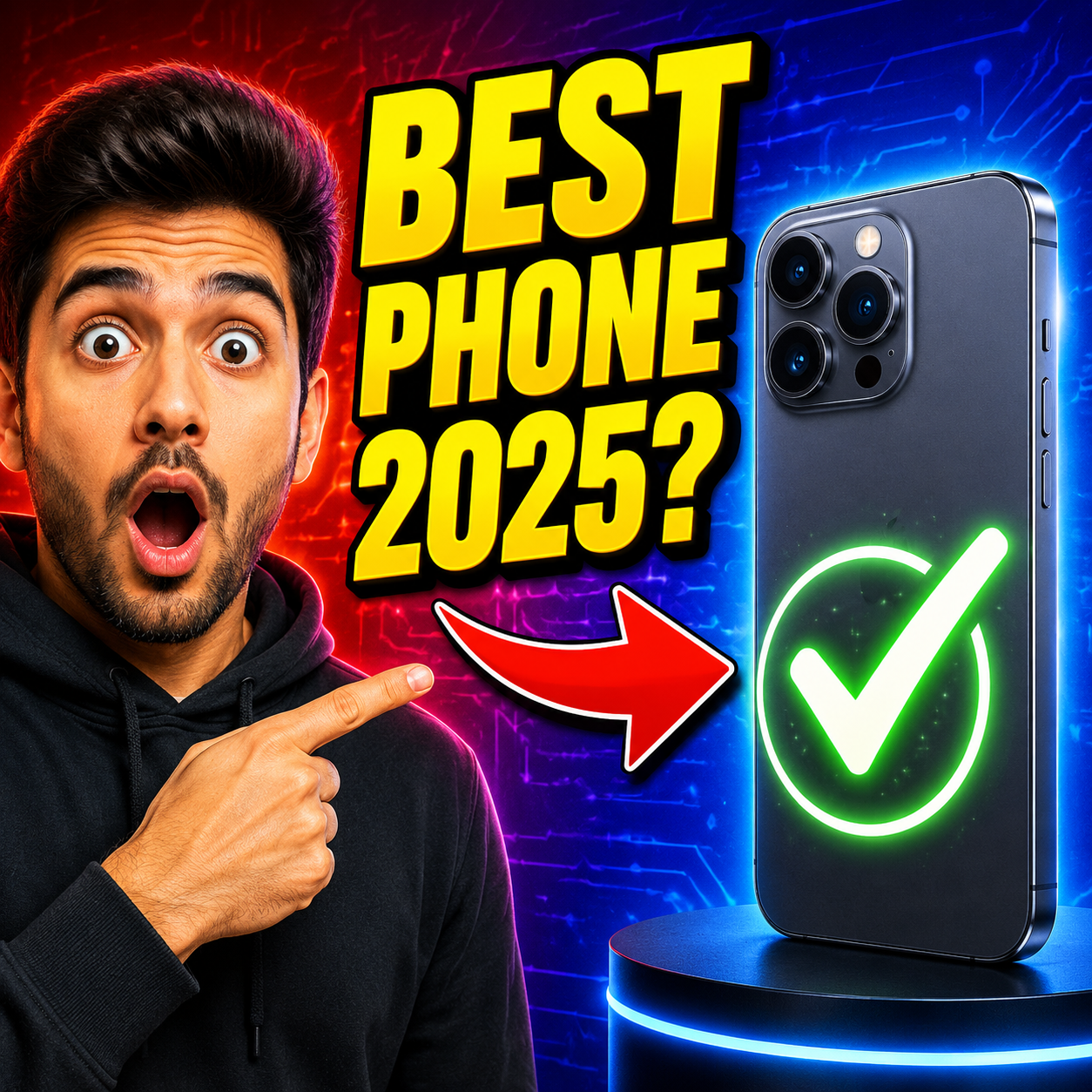
AI-generated DIY thumbnail concept featuring a fictional adult creator.
Introduction
Give the MiniMax H4 AI YouTube thumbnail generator a truthful hook
Brief the MiniMax H4 AI YouTube thumbnail generator around something viewers will actually see or learn.
Find the moment worth showing
For a desk restoration video, focus on the repaired corner or the satisfying final surface. Give the MiniMax H4 AI YouTube thumbnail generator that concrete moment rather than a generic workshop. A specific visual question is easier to understand than several unrelated tools.
- Write the video promise as one plain sentence.
- Keep the MiniMax H4 AI YouTube thumbnail generator concept connected to that promise.
Show the important contrast
A small seedling beside its supporting trellis can suggest a gardening problem without inventing an impossible harvest. Ask the MiniMax H4 AI YouTube thumbnail generator for a contrast the video can support. Differences in scale, condition, or position should have an honest explanation.
Avoid adding a second story
A face, a broken chair, a clock, and a dramatic skyline may compete for attention. Tell the MiniMax H4 AI YouTube thumbnail generator which subject leads. Remove an element when explaining its presence takes longer than explaining the actual video idea.
How to use
How to use the MiniMax H4 AI YouTube thumbnail generator
- PromptSTEP 1
Choose the video hook
Select GPT Image 2 text mode in the MiniMax H4 AI YouTube thumbnail generator and describe one truthful moment from your video.
- ModelGPT Image 21K16:9PromptSTEP 2
Build one focal point
Give the MiniMax H4 AI YouTube thumbnail generator a prominent subject, restrained background, and optional short wording that complements the video title.
- Layout preview
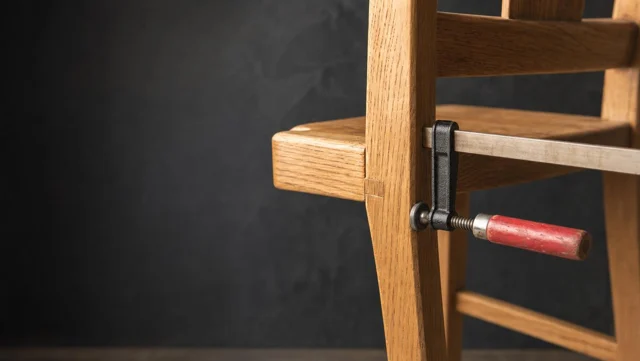 Fix Loose Wooden Chair JointsLayout preview onlySTEP 3
Create the thumbnail
Choose wide 1K framing in the MiniMax H4 AI YouTube thumbnail generator, check the displayed credits, and generate one focused visual direction.
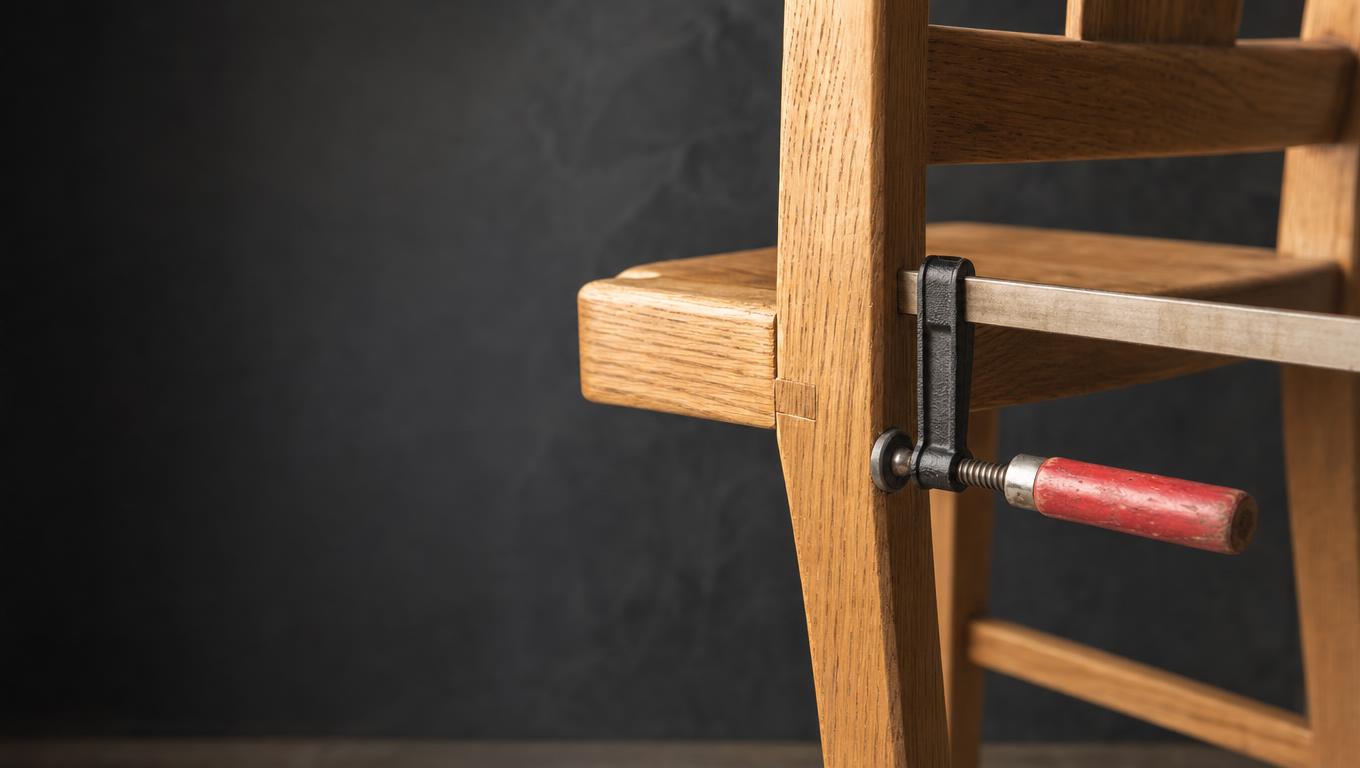
- Create a wide 16:9 editorial thumbnail concept for a video about repairing a loose wooden chair joint. Show one close, clearly readable chair joint with a single clamp holding the repaired area; no hands or extra tools. Warm oak against a quiet slate workshop background, strong separation, natural side lighting. Keep the main object large enough to understand at a small preview size. Reserve the left quarter as calm dark space for a short question added separately. No embedded lettering, logos, exaggerated damage, or split-screen comparison.DownloadSTEP 4
Review the small preview
Inspect MiniMax H4 AI YouTube thumbnail generator results at phone size, checking spelling and truthful content before downloading and uploading the thumbnail yourself.
Features
Make the MiniMax H4 AI YouTube thumbnail generator focal point obvious
Direct the MiniMax H4 AI YouTube thumbnail generator toward one focal point and quieter supporting context.
Use size to establish priority
Let the main object occupy enough of the frame to remain recognizable when reduced. A repaired chair joint needs a closer view than a room makeover. Specify the crop in the MiniMax H4 AI YouTube thumbnail generator instead of requesting more detail everywhere.
- Choose one dominant object, face, or visible action.
- Inspect the MiniMax H4 AI YouTube thumbnail generator composition at a small preview size.
Separate the subject from its setting
A warm wooden object can stand against a quiet cool backdrop without a thick artificial outline. Give the MiniMax H4 AI YouTube thumbnail generator contrasting subject and background tones. Keep contextual details visible only when they explain the activity or help establish scale.
Make expressions fit the footage
For a person-led thumbnail, use a relevant expression rather than exaggerated surprise by default. Switch to reference editing when working from an authorized portrait. The MiniMax H4 AI YouTube thumbnail generator should not imply a reaction or participation absent from the real video.

Leave room for MiniMax H4 AI YouTube thumbnail generator typography
Plan MiniMax H4 AI YouTube thumbnail generator framing before deciding whether the image needs added wording.
Use a phrase that complements the image
If the picture clearly shows a damaged hinge, a short phrase such as Worth fixing? adds a question instead of repeating the object name. Give the MiniMax H4 AI YouTube thumbnail generator a quiet area where that phrase can be placed separately.
- Prefer a few useful words over a miniature summary.
- Keep the MiniMax H4 AI YouTube thumbnail generator focal point clear of the planned lettering.
Add final lettering in your layout
Request an image without embedded text when you need precise wording or easy revisions. The MiniMax H4 AI YouTube thumbnail generator produces JPEG artwork, not editable text layers. Adding the final line afterward keeps spelling, spacing, contrast, and later wording changes under your control.
Check edges and interface overlap
Leave breathing room around important faces, objects, and lettering. Test the composition in the actual destination preview rather than assuming every edge stays unobstructed. MiniMax H4 AI YouTube thumbnail generator artwork should still communicate when surrounding interface elements compete for attention.
Explore MiniMax H4 AI YouTube thumbnail generator directions deliberately
Use the MiniMax H4 AI YouTube thumbnail generator to compare different answers to one visual problem.
Begin with a wide text brief
Start with GPT Image 2 in text mode at 16:9 and 1K. Describe the video subject, the camera view, and a quiet background. Before submitting the thumbnail request, review the selected settings and the credits shown for them.
- Describe the object relationship before adding lighting adjectives.
- Keep the MiniMax H4 AI YouTube thumbnail generator scene possible within the real video.
Use references when specifics matter
GPT Image 2 also supports image mode with up to sixteen references. Upload relevant authorized material when a particular object or person matters. Label each reference by role in the MiniMax H4 AI YouTube thumbnail generator brief instead of expecting the model to infer every relationship.
Choose outputs for comparison
You can choose one to four outputs and 1K, 2K, or 4K with supported ratios. Compare MiniMax H4 AI YouTube thumbnail generator candidates using the same question: is the focal point clearer? Larger resolution alone does not repair a crowded or misleading composition.

Review MiniMax H4 AI YouTube thumbnail generator results at viewing size
An MiniMax H4 AI YouTube thumbnail generator image should remain understandable after fine detail disappears.
Try the quick recognition check
Place the candidate at a small preview size and look away briefly before returning. Can you name the main subject without studying it? If not, revise the MiniMax H4 AI YouTube thumbnail generator brief toward a tighter crop, fewer props, or stronger separation.
- Compare candidates at equal sizes against the same surrounding background.
- Reject MiniMax H4 AI YouTube thumbnail generator variations that need a long explanation.
Check factual details separately
Inspect tools, product shapes, hands, and any implied result against your actual footage. Attractive artwork can still invent details. Choose an MiniMax H4 AI YouTube thumbnail generator candidate that represents the video accurately rather than the most dramatic picture in the set.
Keep the title and image complementary
Read the video title beside the thumbnail. If both make exactly the same statement, use the picture to show an example or consequence. Refine the MiniMax H4 AI YouTube thumbnail generator concept so the pair communicates more than either component alone.

Prepare the MiniMax H4 AI YouTube thumbnail generator image for use
Complete MiniMax H4 AI YouTube thumbnail generator artwork in the layout viewers will encounter.
Save the clean artwork too
Keep a copy without added text so you can revise the wording without rebuilding the scene. Save the chosen MiniMax H4 AI YouTube thumbnail generator prompt beside it. This makes later changes to framing or lighting more focused than restarting from memory.
- Inspect the final export after typography and cropping are complete.
- Retain the MiniMax H4 AI YouTube thumbnail generator image before any external layout changes.
Review the actual upload preview
Use your normal publishing workflow to upload the finished file and inspect the preview. The MiniMax H4 AI YouTube thumbnail generator does not connect to YouTube or publish for you. Check the destination requirements there rather than assuming a generated concept is already ready.
Learn from comparable changes
When reviewing performance later, note what changed: the crop, the wording, or the subject emphasis. Do not treat one result as a universal rule. The MiniMax H4 AI YouTube thumbnail generator supplies candidate visuals, not a promise of clicks or a built-in testing platform.

Example prompts
A repair worth watching
Create a wide 16:9 editorial thumbnail concept for a video about repairing a loose wooden chair joint. Show one close, clearly readable chair joint with a single clamp holding the repaired area; no hands or extra tools. Warm oak against a quiet slate workshop background, strong separation, natural side lighting. Keep the main object large enough to understand at a small preview size. Reserve the left quarter as calm dark space for a short question added separately. No embedded lettering, logos, exaggerated damage, or split-screen comparison.
The balcony growing problem
A 16:9 thumbnail illustration for a practical video about supporting a climbing balcony plant. One small plant leaning toward a simple trellis, a clearly visible loose support tie, and a quiet balcony wall. Use an eye-level close view with the plant and support occupying most of the frame. Bright natural daylight, fresh green leaves against pale blue-gray, uncluttered background. Leave modest open space at the upper left for separate text. Show a believable plant rather than an impossible harvest. No words, logos, people, or extra panels.
User reviews
MiniMax H4 creator workflow examples.
MiniMax H4 creator workflows

Create a short MiniMax H4 game scene using a character reference and a clear action. Compare the generated character, interface details, and motion with the source before using the result.

Explore an animation look in MiniMax H4 with a focused visual brief. Keep a style reference, test one motion at a time, and inspect consistency between shots.

Use product photographs to plan a MiniMax H4 listing video. Review the actual packaging, visible labels, and generated audio; assess campaign results using your own measurements.

Prepare a short MiniMax H4 vertical video with one subject and one visible change. Choose the ratio, preview the complete clip, and revise the prompt before publishing.

Choose an available editing model in MiniMax H4 and describe the intended change. Check preserved details, lighting, and frame continuity against the original recording.

Build a MiniMax H4 shot study before a shoot. Describe framing and camera movement, review each draft, and keep the result as a planning aid rather than a guarantee of the final shot.
MiniMax H4 Pricing and Credit Plans
Cancel anytime
Lite
50% off0.025 / credit
Billed $179 yearly· Save $179.8
Video Models



Image Models



- Includes MiniMax H4 and all premium models
- Up to 1 batch generation task
- Standard generation speed
- Standard generation success rate
- Standard customer support
- Commercial Use License
Standard
50% off0.017 / credit
Billed $299 yearly· Save $299.8
Video Models
Image Models
- Includes MiniMax H4 and all premium models
- Up to 4 batch generation tasks
- Priority processing speed
- High generation success rate
- Priority customer support
- Commercial Use License
Pro
50% off0.014 / credit
Billed $599 yearly· Save $599.8
Video Models
Image Models
- Includes MiniMax H4 and all premium models
- Up to 10 batch generation tasks
- Fastest generation speed
- High generation success rate
- Dedicated account manager
- Commercial Use License
Max
50% off0.012 / credit
Billed $1,199 yearly· Save $1,199.8
Video Models
Image Models
- Includes MiniMax H4 and all premium models
- Up to 10 batch generation tasks
- Fastest generation speed
- High generation success rate
- Dedicated account manager
- Commercial Use License
Pay safely and securely with























FAQ
Frequently asked questions
What should I put in an MiniMax H4 AI YouTube thumbnail generator prompt?
Describe the actual video topic, one focal subject, its position, and the supporting background. Give the MiniMax H4 AI YouTube thumbnail generator a specific visual question, such as whether a damaged chair can be repaired. Add lighting and a text-free area only after the central idea is clear.
Can I use a real video frame as a reference?
Yes. Switch to GPT Image 2 image mode and upload a frame you are authorized to use. Tell the MiniMax H4 AI YouTube thumbnail generator what should stay recognizable and what may change. Compare the result with the footage because exact preservation is not guaranteed.
Will the wording always be correct?
No. Review any generated lettering carefully. For precise text, ask the MiniMax H4 AI YouTube thumbnail generator for clean artwork and add the final phrase afterward. The output is a JPEG image, not a document with separately editable captions, shapes, or type layers.
Will it upload the thumbnail or improve my click rate?
No upload connection or click-rate result is promised. Use the MiniMax H4 AI YouTube thumbnail generator to develop and compare visuals, then handle publishing through your usual workflow. A useful thumbnail must fit the video, audience, title, and viewing context as well as look clear.
Which settings should I start with?
Begin at 16:9 and 1K in GPT Image 2 text mode. The MiniMax H4 AI YouTube thumbnail generator also offers supported ratios, higher resolution choices, and one to four outputs. Check the displayed credits for the configuration you select before submitting each request.
CTA
Give the MiniMax H4 AI YouTube thumbnail generator your clearest video moment
Choose one subject viewers will recognize, describe the framing, and check your configuration. Compare MiniMax H4 AI YouTube thumbnail generator candidates at a small size before adding the final wording and publishing through your usual workflow.
Create a thumbnail concept