MiniMax H4 Background Remover for Local Image Cutouts
MiniMax H4 Background Remover processes pictures in your browser after sign-in. Inputs and results are uploaded to your account for task review. No subscription, credit deduction, or paid cloud model is required. Keep your source and inspect the result before using it elsewhere.
Background Remover workspace
Drop or paste a JPG, PNG or WebP · up to 30 MB
Up to 8192 pixels per side and 32 megapixels
Free · Sign in to process · Inputs and results are saved to your account. The first cutout downloads a local model. Processing speed depends on your device.
Introduction
What Is MiniMax H4 Background Remover?
MiniMax H4 Background Remover takes a photo, removes the surrounding background, and keeps the main subject in a transparent PNG. Choose a picture of shoes on a table, then save a cutout of the shoes for another design after checking the edges.
MiniMax H4 Background Remover: Create a reusable subject cutout
A subject can be useful in more than its original setting. MiniMax H4 Background Remover helps prepare a cutout for a slide, product layout, profile composition, or another design where the existing surroundings are distracting. The downloaded transparent PNG can be placed over a different background later.
Choose MiniMax H4 Background Remover when you want to isolate the main foreground rather than erase one arbitrary object while preserving everything else. The model makes an estimate from the picture you provide. Inspect the result rather than assuming it understands every overlapping subject or unusual outline.
- Prepare a cutout from a supported static source picture.
- Inspect what the model retained and what it removed.
MiniMax H4 Background Remover: Browser processing and account history
MiniMax H4 Background Remover processes pictures in your browser after sign-in. Inputs and results are uploaded to your account for task review. No subscription, credit deduction, or paid cloud model is required. Keep your source and inspect the result before using it elsewhere.
MiniMax H4 Background Remover processes pictures in your browser after sign-in. Inputs and results are uploaded to your account for task review. No subscription, credit deduction, or paid cloud model is required. Keep your source and inspect the result before using it elsewhere.
- Run image inference locally instead of uploading a photo.
- Expect an initial model and runtime download before processing.

How to use
How to Use MiniMax H4 Background Remover
- Beforebag.jpg
 1254 × 1254 px1.63 MBSTEP 1
Choose a local picture
Open MiniMax H4 Background Remover and select a supported JPG, PNG, or WebP. Use existing cutout mode only when the source already contains the alpha you need.
- BackgroundTransparentSTEP 2
Run the appropriate path
Let MiniMax H4 Background Remover download its model and runtime on first use, then process the picture locally. Existing cutout mode skips inference and preserves source alpha.
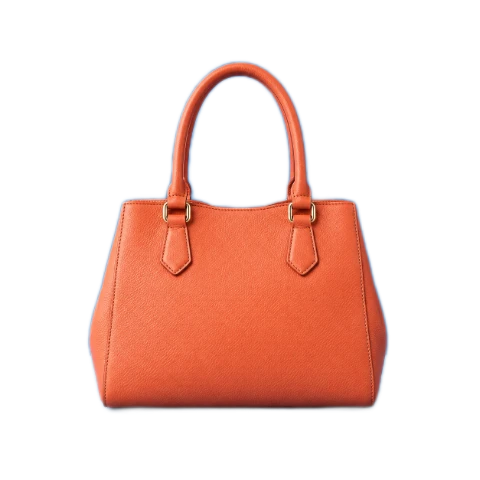 ↔BeforeAfterSTEP 3
Inspect and choose a background
Use the comparison switch and zoom in MiniMax H4 Background Remover. Try transparent, white, black, or a custom HEX fill without repeating inference for each color change.
- AfterBeforebag.pngDownload
Checkerboard shows transparency and is not included in downloads.
STEP 4Download the PNG
Export from MiniMax H4 Background Remover after inspecting the edges. The PNG retains source dimensions and contains either transparency or the solid background color you selected.
Features
MiniMax H4 Background Remover Features: Local Inference and Existing Cutouts
MiniMax H4 Background Remover offers two starting paths: estimate a foreground from an ordinary picture, or preserve an existing cutout without running the model again.
Understand loading and processing time
On a first run, MiniMax H4 Background Remover needs its model files and WASM processing resources before it can produce a mask. Later runs may reuse available browser resources, but cache availability is not permanent and a download may be needed again in a future session.
Processing speed in MiniMax H4 Background Remover depends on the device, browser conditions, and source picture. Do not expect every supported image to finish instantly on every phone or computer. Keep the page available during work and use the displayed loading and processing states to follow progress.
- Allow the initial resources to finish loading before judging speed.
- Treat browser caching as helpful rather than permanently guaranteed.
Preserve an already prepared alpha channel
Use existing cutout mode in MiniMax H4 Background Remover when the source already has the transparency you need. This path skips model inference and preserves the original alpha channel, avoiding an unnecessary attempt to estimate the foreground of a picture that has already been prepared.
An ordinary opaque JPG does not become isolated through this bypass. MiniMax H4 Background Remover keeps existing alpha rather than inventing it in cutout mode. Choose the model path for a new separation, or use the bypass for a suitable transparent PNG or WebP that you trust.
- Skip inference when the source already contains the desired cutout.
- Use the model path when an opaque background still needs removal.

MiniMax H4 Background Remover Features: Preview and PNG Background Choices
MiniMax H4 Background Remover lets you inspect the same extracted subject against several backgrounds, then export a PNG without repeating inference just to change the fill color.
Compare the original with the result
Switch between before and after in MiniMax H4 Background Remover to see which regions changed, then use the zoom preview to inspect the outline. Pay attention to thin objects, gaps around limbs, and areas where foreground and background have similar colors or weak separation.
The MiniMax H4 Background Remover result retains the source width and height. Keeping those dimensions does not guarantee that every boundary detail has been recovered accurately. It preserves the output canvas size while the quality of the estimated mask still depends on the picture and model.
- Use the before-and-after switch to inspect retained regions.
- Zoom in without confusing preview magnification with added detail.
Reuse the mask across background choices
After processing, MiniMax H4 Background Remover can switch between transparent, white, black, and a custom HEX color without repeating inference. These options reuse the same cutout. Changing the fill is a separate compositing operation, not another attempt to improve the model decision at the boundary.
Choose transparency in MiniMax H4 Background Remover for a PNG with alpha, or select a solid background for that color to be included in the exported PNG pixels. A white or custom fill is therefore part of the download, not merely a temporary display behind the preview.
- Export transparent PNG for reuse over another design.
- Export a solid-background PNG with the chosen color embedded.
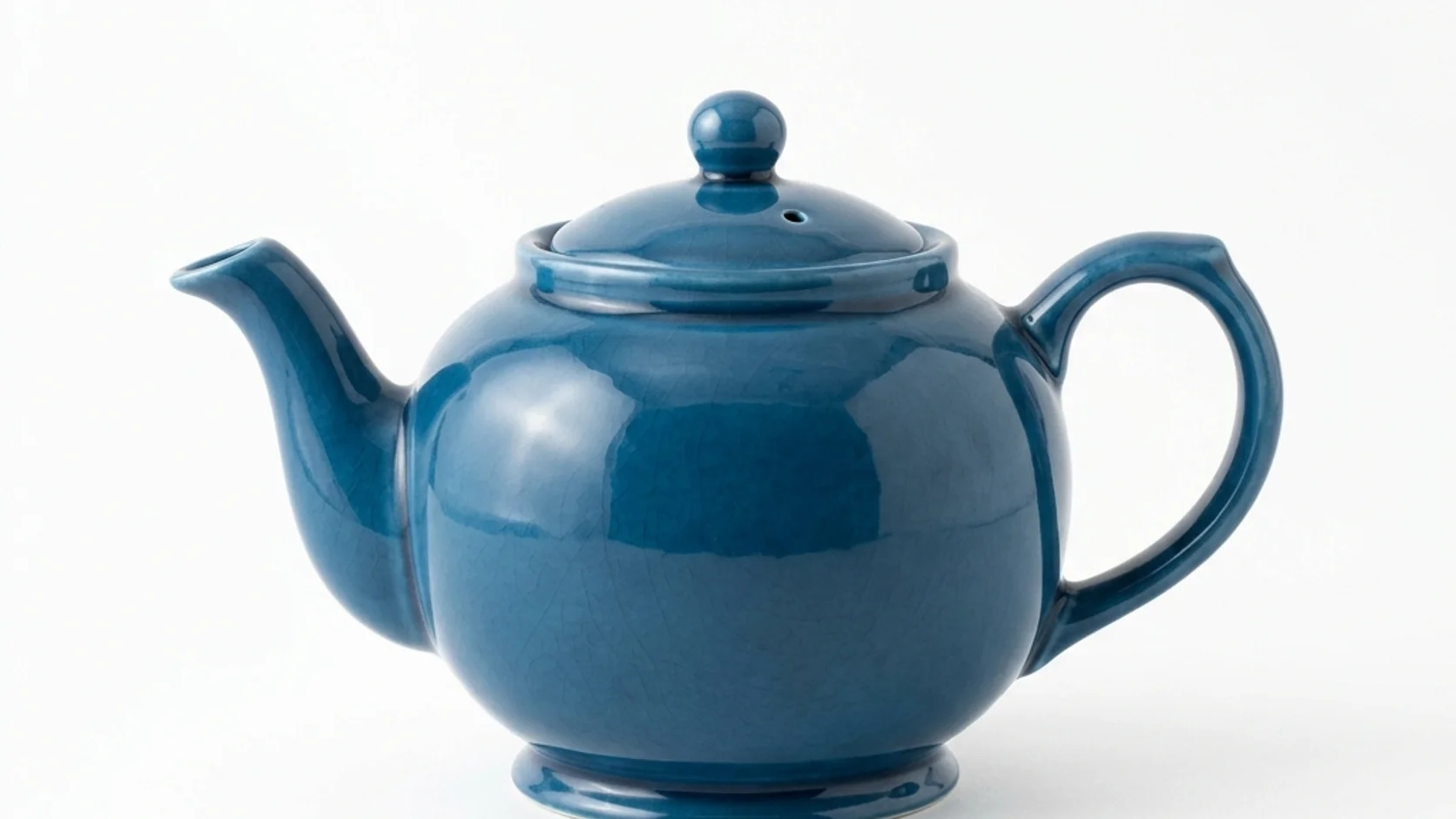
MiniMax H4 Background Remover Features: Realistic Edges and Supported Inputs
MiniMax H4 Background Remover works within defined input limits and model capabilities. Use the preview to decide whether a result is suitable rather than relying on an automatic quality guarantee.
Inspect hair, glass, and difficult boundaries
MiniMax H4 Background Remover cannot promise perfect hair, fur, glass, or translucent edges. Thin strands can disappear, background fragments can remain, and low-contrast areas can be difficult to separate. A detailed source helps inspection, but larger dimensions alone do not guarantee a clean mask.
Use a contrasting fill in MiniMax H4 Background Remover to reveal missed areas before downloading. The workflow does not include a promised manual mask brush, studio relighting, or generative edge repair. If the visible result is unsuitable, choose a more suitable source or finish the mask elsewhere.
- Check fragile outlines and see-through objects particularly carefully.
- Do not expect a fill change to repair the cutout.
Check format, dimensions, and file size
MiniMax H4 Background Remover accepts static JPG, PNG, and WebP up to 30 MB per file. An input must have no side longer than 8192 pixels and no more than 32 megapixels in total. Both pixel limits apply, even when the compressed source file is small.
Animations, HEIC, TIFF, SVG, and AVIF are not supported by MiniMax H4 Background Remover. Unsupported files are not uploaded for conversion, and there is no cloud processing fallback. Local operation also does not promise permanent offline access, since resources may need to be loaded again.
- Check file size and both dimension limits before starting.
- Use supported static inputs without expecting a server fallback.
User reviews
MiniMax H4 creator workflow examples.
MiniMax H4 creator workflows

Create a short MiniMax H4 game scene using a character reference and a clear action. Compare the generated character, interface details, and motion with the source before using the result.

Explore an animation look in MiniMax H4 with a focused visual brief. Keep a style reference, test one motion at a time, and inspect consistency between shots.

Use product photographs to plan a MiniMax H4 listing video. Review the actual packaging, visible labels, and generated audio; assess campaign results using your own measurements.

Prepare a short MiniMax H4 vertical video with one subject and one visible change. Choose the ratio, preview the complete clip, and revise the prompt before publishing.

Choose an available editing model in MiniMax H4 and describe the intended change. Check preserved details, lighting, and frame continuity against the original recording.

Build a MiniMax H4 shot study before a shoot. Describe framing and camera movement, review each draft, and keep the result as a planning aid rather than a guarantee of the final shot.
MiniMax H4 Background Remover is free after sign-in, with no subscription or credits required. Inputs and results are uploaded and saved to your account for task review.
MiniMax H4 Pricing and Credit Plans
Cancel anytime
Lite
50% off0.025 / credit
Billed $ yearly179· Save $179.8
Video Models



Image Models



- Includes MiniMax H4 and all premium models
- Up to 1 batch generation task
- Standard generation speed
- Standard generation success rate
- Standard customer support
- Commercial Use License
Standard
50% off0.017 / credit
Billed $ yearly299· Save $299.8
Video Models
Image Models
- Includes MiniMax H4 and all premium models
- Up to 4 batch generation tasks
- Priority processing speed
- High generation success rate
- Priority customer support
- Commercial Use License
Pro
50% off0.014 / credit
Billed $ yearly599· Save $599.8
Video Models
Image Models
- Includes MiniMax H4 and all premium models
- Up to 10 batch generation tasks
- Fastest generation speed
- High generation success rate
- Dedicated account manager
- Commercial Use License
Max
50% off0.012 / credit
Billed $ yearly1,199· Save $1,199.8
Video Models
Image Models
- Includes MiniMax H4 and all premium models
- Up to 10 batch generation tasks
- Fastest generation speed
- High generation success rate
- Dedicated account manager
- Commercial Use License
Pay safely and securely with























FAQ
Frequently asked questions
Is MiniMax H4 Background Remover free after signing in?
Yes. MiniMax H4 Background Remover requires sign-in, but no subscription or credits. The original and finished image are saved to your account and included in task history. Paid plans elsewhere on the site are optional for this tool.
Does MiniMax H4 Background Remover upload the picture?
Yes. MiniMax H4 Background Remover uploads the original and finished image to your account for task review. Processing runs in your browser; it does not call a paid cloud model. Sign in before processing, and keep the page open until saving finishes.
Which model does MiniMax H4 Background Remover use?
MiniMax H4 Background Remover uses U2Netp locally through a WASM runtime. Processing speed depends on the device and browser conditions; it is not a promise of instant results or identical performance across all hardware.
Does MiniMax H4 Background Remover preserve the source dimensions?
Yes. MiniMax H4 Background Remover exports a PNG with the original width and height. Preserving the canvas dimensions does not guarantee perfect segmentation or recovery of every strand, translucent detail, or difficult boundary.
Can MiniMax H4 Background Remover skip an existing transparent cutout?
Yes. Existing cutout mode in MiniMax H4 Background Remover bypasses inference and retains the original alpha channel. It is intended for already prepared transparency, not for automatically removing the opaque background of an ordinary JPG.
Does changing a MiniMax H4 Background Remover fill rerun the model?
No. MiniMax H4 Background Remover reuses the existing cutout for transparent, white, black, and custom HEX choices. The selected solid color is included in the exported PNG, while transparent output keeps alpha for later compositing.
Can MiniMax H4 Background Remover guarantee perfect hair or glass?
No. Fine strands, translucent materials, overlapping subjects, and low-contrast edges can produce imperfect masks. Use zoom and contrasting backgrounds to inspect the result before deciding whether it is suitable.
Will MiniMax H4 Background Remover always work offline after one visit?
That is not guaranteed. The website, model, or runtime may need to load again if resources are unavailable or browser storage changes. Local image processing is distinct from permanently available offline operation.
CTA
Prepare a Cutout with MiniMax H4 Background Remover
Choose a picture, inspect the foreground, and select a useful PNG background. MiniMax H4 Background Remover keeps the image local while leaving the final quality decision with you.
Choose an Image