MiniMax H4 Transparent Background PNGs from Local Pictures
Prepare an image that can sit over another design without an unwanted rectangle. MiniMax H4 Transparent Background supports local subject extraction and existing cutouts, with a PNG download that retains alpha. Use MiniMax H4 Transparent Background to inspect transparency before placing the result into your next layout.
Transparent Background workspace
Drop or paste a JPG, PNG or WebP · up to 30 MB
Up to 8192 pixels per side and 32 megapixels
Free · Sign in to process · Inputs and results are saved to your account. The first cutout downloads a local model. Processing speed depends on your device.
Introduction
What Is MiniMax H4 Transparent Background?
MiniMax H4 Transparent Background makes the space around a photo's subject see through and saves a transparent PNG. Choose a product photo, then place the saved cutout on a colored poster without a white rectangle; the poster shows through instead.
Create a file without an opaque surrounding rectangle
A cutout can be easier to reuse than a picture with its original surroundings. MiniMax H4 Transparent Background helps prepare a subject for a presentation, design composition, or other layout where the area outside the subject should reveal the material underneath rather than cover it.
MiniMax H4 Transparent Background is about the exported pixels, not simply the appearance of a preview. A viewer may display an empty area against white, dark gray, or a checker pattern. That display background does not necessarily tell you whether the downloaded file has real transparency.
- Prepare alpha for compositing the subject over another design.
- Judge transparency in the file rather than its surrounding viewer.
Distinguish PNG format from actual alpha
PNG can contain transparency, but a PNG can also be fully opaque. MiniMax H4 Transparent Background does more than rename a JPG or save the same opaque rectangle with another extension. The model path estimates a subject mask, while the existing-cutout path preserves alpha already present.
Choose MiniMax H4 Transparent Background for that distinction between file format and usable cutout information. A photograph with white surroundings is not automatically transparent, even if the white happens to match your current slide. Test the result against a different fill to reveal the difference.
- Do not assume every PNG already has transparent areas.
- Use a contrasting background to expose an opaque rectangle.

How to use
How to Use MiniMax H4 Transparent Background
- Beforebag.jpg
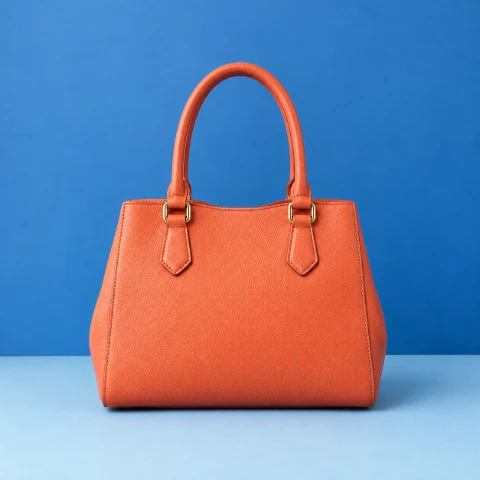 1254 × 1254 px1.63 MBSTEP 1
Choose the source and path
Open MiniMax H4 Transparent Background and select a supported local image. Choose existing cutout mode when its alpha is already correct, or use model extraction for a new cutout.
- BackgroundTransparentSTEP 2
Prepare the local result
Let MiniMax H4 Transparent Background load the model and WASM runtime when required, then process locally. Existing cutout mode bypasses inference and preserves the original alpha channel.
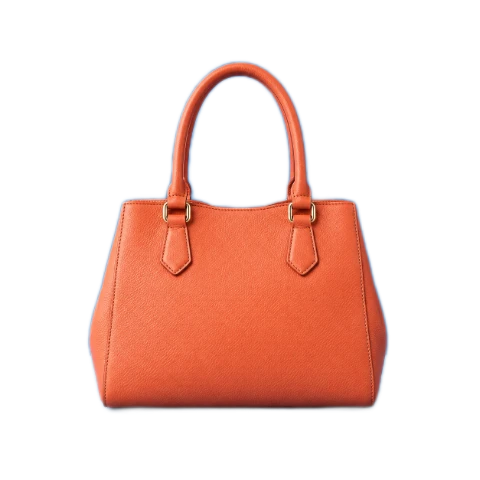 PNG · TransparentSTEP 3
Inspect against different fills
Compare before and after and use zoom in MiniMax H4 Transparent Background. Try white, black, or a custom HEX fill to reveal edge problems without repeating inference.
- AfterBeforebag.pngDownload
Checkerboard shows transparency and is not included in downloads.
STEP 4Export with transparency selected
Switch MiniMax H4 Transparent Background to the transparent option before downloading the PNG. Check that the exported file contains alpha rather than a solid fill chosen during inspection.
Features
MiniMax H4 Transparent Background Features: Extraction or Alpha Preservation
MiniMax H4 Transparent Background provides separate paths for ordinary pictures and prepared cutouts, so a useful existing alpha channel does not need to be replaced by a model estimate.
Extract a subject locally with U2Netp
For a picture that still needs separation, MiniMax H4 Transparent Background runs U2Netp in your browser through a WASM runtime. The image is processed locally with inputs and outputs saved to your account. The model and runtime need to download before the first local inference can begin.
MiniMax H4 Transparent Background does not guarantee that the model will identify every intended region correctly. It may remove fine details or retain unwanted surroundings. Inspect the outline and any internal gaps rather than assuming that a large source automatically produces an equally precise transparency mask.
- Use the model when the source still needs subject separation.
- Allow the initial model and runtime resources to download.
Keep an existing cutout unchanged at the alpha level
Existing cutout mode in MiniMax H4 Transparent Background skips inference and preserves the original alpha channel. Use it for a prepared PNG or WebP whose visible and transparent regions are already correct. This avoids asking a second segmentation pass to reinterpret an outline you already trust.
MiniMax H4 Transparent Background cannot create new transparency through that bypass alone. An opaque source remains opaque where it has no transparent pixels. Choose the extraction path for a fresh mask, and use the existing-cutout path when preservation, preview, and PNG output are the actual tasks.
- Bypass the model when the source alpha is already suitable.
- Keep opaque inputs on the extraction path when needed.

MiniMax H4 Transparent Background Features: Inspection and Reusable PNG Output
MiniMax H4 Transparent Background lets you inspect the cutout against different fills before choosing whether the final PNG should retain alpha or include a solid background.
Use comparison and zoom for edge inspection
Switch between the source and result in MiniMax H4 Transparent Background to identify lost details or retained background patches. Zoom into edges that matter for the intended use, including spaces between fingers, thin product parts, hair outlines, or an object with a complicated silhouette.
White, black, and custom HEX fills in MiniMax H4 Transparent Background make different edge problems easier to notice. A pale fringe can disappear against white and become obvious against black. These checks help evaluate the existing mask; switching a preview fill does not improve its accuracy.
- Compare the source with the result before saving the cutout.
- Inspect edges against both light and dark background choices.
Export alpha or a deliberately filled PNG
Select the transparent option in MiniMax H4 Transparent Background to export PNG with alpha rather than a baked-in solid fill. The downloaded image retains the source width and height. Transparent outer areas can remain around the subject because the workflow does not automatically crop the canvas to its outline.
MiniMax H4 Transparent Background also allows white, black, or a custom HEX background without repeating inference. Choosing one of those solid fills embeds it into the PNG. Switch back to transparency before export when you need a reusable cutout rather than a finished opaque composition.
- Select transparency for a reusable PNG with an alpha channel.
- Select a solid fill only when it belongs in the download.
MiniMax H4 Transparent Background Features: Local Processing and Honest Boundaries
MiniMax H4 Transparent Background combines a private image workflow with defined technical limits. Local inference does not mean perfect segmentation, identical device speed, or guaranteed permanent offline availability.
Understand difficult materials and colored fringes
MiniMax H4 Transparent Background cannot promise perfect hair, glass, fur, or translucent boundaries. Background colors reflected into a subject can remain visible even after surrounding pixels become transparent. The tool does not relight the foreground or reconstruct missing strands to match every possible future background.
Inspect the MiniMax H4 Transparent Background result against the kind of surface where it will be used. A cutout suitable for a small slide illustration may reveal flaws in a large product display. Preserving the source dimensions does not turn uncertain model edges into guaranteed original detail.
- Check translucent objects and fine strands without expecting perfection.
- Review the cutout in a context similar to its intended use.
Check source limits and resource availability
MiniMax H4 Transparent Background accepts static JPG, PNG, and WebP up to 30 MB per file. Limits: 8192 pixels per side and 32 megapixels total. Animation, HEIC, TIFF, SVG, and AVIF are unsupported and are not uploaded for conversion.
MiniMax H4 Transparent Background processes pictures in your browser after sign-in. Inputs and results are uploaded to your account for task review. No subscription, credit deduction, or paid cloud model is required. Keep your source and inspect the result before using it elsewhere.
- Respect both pixel limits as well as the file-size limit.
- MiniMax H4 Transparent Background processes pictures in your browser after sign-in. Inputs and results are uploaded to your account for task review. No subscription, credit deduction, or paid cloud model is required. Keep your source and inspect the result before using it elsewhere.
User reviews
MiniMax H4 creator workflow examples.
MiniMax H4 creator workflows

Create a short MiniMax H4 game scene using a character reference and a clear action. Compare the generated character, interface details, and motion with the source before using the result.

Explore an animation look in MiniMax H4 with a focused visual brief. Keep a style reference, test one motion at a time, and inspect consistency between shots.

Use product photographs to plan a MiniMax H4 listing video. Review the actual packaging, visible labels, and generated audio; assess campaign results using your own measurements.

Prepare a short MiniMax H4 vertical video with one subject and one visible change. Choose the ratio, preview the complete clip, and revise the prompt before publishing.

Choose an available editing model in MiniMax H4 and describe the intended change. Check preserved details, lighting, and frame continuity against the original recording.

Build a MiniMax H4 shot study before a shoot. Describe framing and camera movement, review each draft, and keep the result as a planning aid rather than a guarantee of the final shot.
MiniMax H4 Transparent Background is free after sign-in, with no subscription or credits required. Inputs and results are uploaded and saved to your account for task review.
MiniMax H4 Pricing and Credit Plans
Cancel anytime
Lite
50% off0.025 / credit
Billed $ yearly179· Save $179.8
Video Models



Image Models



- Includes MiniMax H4 and all premium models
- Up to 1 batch generation task
- Standard generation speed
- Standard generation success rate
- Standard customer support
- Commercial Use License
Standard
50% off0.017 / credit
Billed $ yearly299· Save $299.8
Video Models
Image Models
- Includes MiniMax H4 and all premium models
- Up to 4 batch generation tasks
- Priority processing speed
- High generation success rate
- Priority customer support
- Commercial Use License
Pro
50% off0.014 / credit
Billed $ yearly599· Save $599.8
Video Models
Image Models
- Includes MiniMax H4 and all premium models
- Up to 10 batch generation tasks
- Fastest generation speed
- High generation success rate
- Dedicated account manager
- Commercial Use License
Max
50% off0.012 / credit
Billed $ yearly1,199· Save $1,199.8
Video Models
Image Models
- Includes MiniMax H4 and all premium models
- Up to 10 batch generation tasks
- Fastest generation speed
- High generation success rate
- Dedicated account manager
- Commercial Use License
Pay safely and securely with























FAQ
Frequently asked questions
Is MiniMax H4 Transparent Background free after signing in?
Yes. MiniMax H4 Transparent Background requires sign-in, but no subscription or credits. The original and finished image are saved to your account and included in task history. Paid plans elsewhere on the site are optional for this tool.
Does MiniMax H4 Transparent Background upload the image?
Yes. MiniMax H4 Transparent Background uploads the original and finished image to your account for task review. Processing runs in your browser; it does not call a paid cloud model. Sign in before processing, and keep the page open until saving finishes.
Does saving with MiniMax H4 Transparent Background make every PNG transparent?
Only when the output actually contains alpha. MiniMax H4 Transparent Background can export a cutout with transparency or embed a selected solid fill. Choosing a PNG extension alone does not remove an opaque photographic background.
Can MiniMax H4 Transparent Background preserve an existing alpha channel?
Yes. Existing cutout mode in MiniMax H4 Transparent Background skips the model and preserves source alpha. Use it for an already prepared cutout rather than rerunning subject extraction unnecessarily over a suitable outline.
Why does a MiniMax H4 Transparent Background image look white in another viewer?
Some viewers display a MiniMax H4 Transparent Background PNG against a white surface. The appearance alone is not conclusive. Place the PNG over a contrasting background and check whether the area around the subject reveals that background.
Does MiniMax H4 Transparent Background crop the canvas to the subject?
No. MiniMax H4 Transparent Background retains the source width and height, including transparent outer space where appropriate. Use a separate crop operation afterward when the layout needs a tighter canvas around the subject.
Can MiniMax H4 Transparent Background guarantee perfect glass and hair edges?
No. Fine strands, translucent materials, reflections, and low-contrast outlines can remain imperfect. Zoom in and test contrasting fills before relying on the result for a detailed or prominently displayed composition.
Does MiniMax H4 Transparent Background rerun inference when I change colors?
No. MiniMax H4 Transparent Background reuses the existing cutout for transparent, white, black, and custom HEX choices. A solid fill is embedded in the exported PNG, so select transparency again before saving a file intended for compositing.
CTA
Prepare Real Alpha with MiniMax H4 Transparent Background
Inspect the outline, choose transparency, and save a PNG ready for another layout. MiniMax H4 Transparent Background keeps the distinction between a cutout and an opaque preview clear.
Choose an Image