MiniMax H4 Wan 2.6 for Focused Scene Briefs and Single-Image Motion
A useful video brief tells the viewer where to look and what changes. Use MiniMax H4 Wan 2.6 on H3 Max to develop text-led scenes or animate one starting image, with enough time for an action to become clear without turning a short clip into an overloaded story.
Video workspace
The wooden elevator opens
28/45View prompt
Five-second continuous frontal shot of closed wooden elevator doors opening slowly to reveal one adult woman standing inside. Keep the camera fixed at eye level and the woman relaxed, facing forward. Preserve a simple, balanced composition with warm wood grain and soft interior light. End with the doors open and the woman still standing.
Introduction
What Is MiniMax H4 Wan 2.6?
MiniMax H4 Wan 2.6 belongs to Alibaba’s video generation family. Its fal text and image endpoints turn a written scene or supplied opening picture into a moving result.
A scene model with two practical starting points
The text route lets MiniMax H4 Wan 2.6 establish the picture from your description; the image route starts with one supplied frame. Both accept motion instructions and offer 720p or 1080p output. The choice is about what you already know: use words when exploring a scene, or use an image when its subject and arrangement are already important.
The MiniMax H4 Wan 2.6 workflow on H3 Max
This workspace offers text and single-image generation with 5, 10, or 15 seconds to work with. Keep the prompt within 1500 characters. MiniMax H4 Wan 2.6 here does not provide a reference-video mode or a custom audio upload. Build the request around the available starting material and the visible action you want to evaluate.
How to use
How to Build a MiniMax H4 Wan 2.6 Scene
- PromptSTEP 1
Choose text or an image
Open MiniMax H4 Wan 2.6 on H3 Max. Use text for a newly described scene or image mode with one prepared picture when the starting appearance should guide the result.
- ModelWan 2.6720p16:95sPromptSTEP 2
Write a compact motion brief
Give MiniMax H4 Wan 2.6 a clear subject, observable movement, and finishing state. Keep the prompt within 1500 characters and remove repeated or contradictory instructions before submitting.
- First frameLast frame
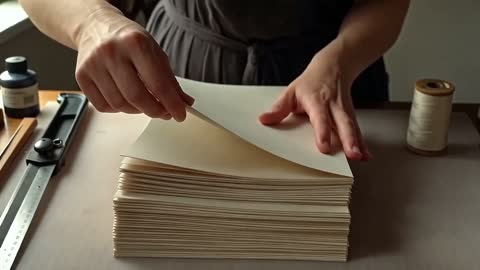 0.0s
0.0s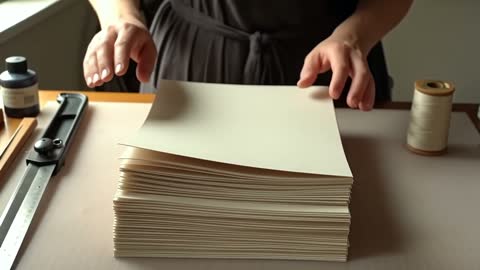 2.5s
2.5s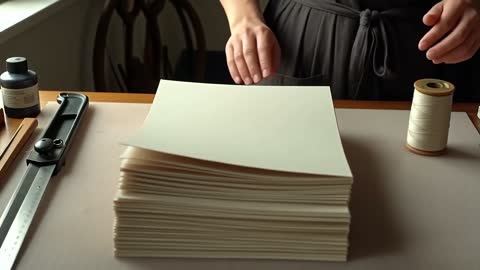 4.5sSTEP 3
Select the output conditions
Set MiniMax H4 Wan 2.6 to 720p or 1080p and choose 5, 10, or 15 seconds. Review the displayed credits after selecting the configuration for your scene.
- Create a five-second scene in a quiet bookbinding workshop. A craftsperson places one folded sheet neatly on a stack and lifts their hands away. Medium close framing, steady viewpoint, soft side light, visible wooden table edge. Keep the stack aligned and the surrounding tools still. End on the completed placement. No scene change or added lettering.DownloadSTEP 4
Watch and refine
Review the complete MiniMax H4 Wan 2.6 clip, paying attention to contact, scale, and the ending. Keep the useful composition and revise one problem in the next brief.
Features
Make Every Line of the MiniMax H4 Wan 2.6 Brief Useful
The prompt limit encourages a clear hierarchy. Give MiniMax H4 Wan 2.6 the scene, the important action, and the composition before spending space on secondary decoration.
Write the event before the atmosphere
Start with something a camera could observe: a paper lantern rising beside a window, or a shopkeeper arranging three folded scarves. Then explain the setting and lighting. A MiniMax H4 Wan 2.6 brief becomes easier to judge when it contains a concrete event rather than several interchangeable adjectives. Keep one sentence for the movement and another for what must remain stable.
Remove instructions that pull in opposite directions
A request cannot be both a tight detail shot and a continuous view of an entire room without explaining a change of framing. Read the MiniMax H4 Wan 2.6 prompt for contradictions before submitting. Remove repeated style words and prioritize the details essential to the assignment. Save a concise version of the brief so later revisions do not accumulate conflicting instructions.
Shape the MiniMax H4 Wan 2.6 Moment Around Its Duration
The available time changes how much the audience can read. Choose the MiniMax H4 Wan 2.6 duration according to the action’s beginning, development, and stopping point.
Use five seconds for a compact visual event
For a short clip, let the scene begin near the action. A hand can set down a stamp, or a curtain can lift enough to reveal a window. Ask MiniMax H4 Wan 2.6 for one event with a clear result. Avoid using most of the time to establish unrelated surroundings when the important movement needs to happen before the clip ends.
Let ten or fifteen seconds develop one idea
A longer take can show preparation, movement, and a pause without changing location. Describe those stages as connected actions rather than a list of separate scenes. With MiniMax H4 Wan 2.6, give the middle of the shot a purpose, such as showing a ribbon passing through a buckle. Check that the ending arrives naturally instead of simply stopping mid-action.
Give One Image a Useful MiniMax H4 Wan 2.6 Movement
A starting picture already contains choices about appearance and framing. Use MiniMax H4 Wan 2.6 to explore motion around those choices instead of asking the prompt to replace them all.
Pick the image for the planned action
Choose a source in which the moving subject is visible and has room to move. An image cropped through a sleeve or handle may be unsuitable for a turning action. Before using MiniMax H4 Wan 2.6, inspect the silhouette, surface contact, and background. A clear initial relationship between objects gives you a stronger basis for judging whether the generated motion makes sense.
Describe the finish in words
This image workflow uses one opening picture, not an uploaded ending frame. Tell MiniMax H4 Wan 2.6 how the action should resolve: the person looks back toward the table, the fabric settles, or the camera stops beside the display. Keep that destination compatible with the source. Review whether the movement preserves recognizable shapes instead of relying only on a pleasing first frame.
Guide MiniMax H4 Wan 2.6 Through a Readable Scene
A shot needs more than movement; it needs a reason to hold attention. Direct MiniMax H4 Wan 2.6 toward a visible relationship between the subject, setting, and camera.
Use a stable feature to explain the motion
A fixed doorway or table edge helps establish how the subject moves through space. Describe that anchor when writing the scene. In a MiniMax H4 Wan 2.6 result, compare the moving object with its surroundings rather than judging it in isolation. Sliding feet, changing scale, or a wandering contact shadow can reveal a problem that is less obvious in a paused close-up.
Give the background a supporting role
Choose one environmental detail that belongs to the scene, such as a slight curtain movement or light shifting across a wall. Keep it quieter than the main event. A MiniMax H4 Wan 2.6 brief does not need activity in every part of the frame. Leaving some areas stable helps the audience follow the intended action and makes unwanted changes easier to notice.
Evaluate the MiniMax H4 Wan 2.6 Clip at Its Delivery Size
The workspace offers two output sizes, but both still need editorial judgment. Review MiniMax H4 Wan 2.6 as a complete moving scene before choosing a version for further use.
Choose 720p or 1080p with a destination in mind
Select the available resolution and check the displayed credits before generating. When examining MiniMax H4 Wan 2.6 output, look at small features at a realistic viewing size as well as close up. A larger frame does not guarantee correct lettering, realistic surfaces, or a stable face. Decide whether the composition communicates clearly before trying to solve every issue through output size.
Turn feedback into one specific revision
Replace a vague request for improvement with a visible correction: reduce the turn, shorten the approach, or preserve the location of an object. Keep the other MiniMax H4 Wan 2.6 instructions unchanged where they already work. Compare the next clip against that single objective. This makes revision a deliberate creative decision rather than a search through unrelated versions of the scene.
Example prompts
Text: one purposeful workshop action
Create a five-second scene in a quiet bookbinding workshop. A craftsperson places one folded sheet neatly on a stack and lifts their hands away. Medium close framing, steady viewpoint, soft side light, visible wooden table edge. Keep the stack aligned and the surrounding tools still. End on the completed placement. No scene change or added lettering.
Image: a gradual fabric movement
Animate the supplied photograph for ten seconds. Let the visible scarf lift slightly in a gentle breeze and then settle back against the same display. Preserve its pattern, proportions, supporting stand, and background. Keep the camera steady and the movement concentrated in the fabric. Finish with the scarf resting naturally. Do not add another item.
Text: a longer reveal of the setting
Create a fifteen-second continuous shot of an empty reading nook. Begin near the corner of a wooden desk, then move slowly sideways to reveal the chair and tall window. Keep the furniture still and the lighting consistent. A curtain moves only slightly. Let the camera settle for the final two seconds. No cuts, people, or text overlays.
User reviews
MiniMax H4 creator workflow examples.
MiniMax H4 creator workflows

Create a short MiniMax H4 game scene using a character reference and a clear action. Compare the generated character, interface details, and motion with the source before using the result.

Explore an animation look in MiniMax H4 with a focused visual brief. Keep a style reference, test one motion at a time, and inspect consistency between shots.

Use product photographs to plan a MiniMax H4 listing video. Review the actual packaging, visible labels, and generated audio; assess campaign results using your own measurements.

Prepare a short MiniMax H4 vertical video with one subject and one visible change. Choose the ratio, preview the complete clip, and revise the prompt before publishing.

Choose an available editing model in MiniMax H4 and describe the intended change. Check preserved details, lighting, and frame continuity against the original recording.

Build a MiniMax H4 shot study before a shoot. Describe framing and camera movement, review each draft, and keep the result as a planning aid rather than a guarantee of the final shot.
MiniMax H4 Pricing and Credit Plans
Cancel anytime
Lite
50% off0.025 / credit
Billed $ yearly179· Save $179.8
Video Models



Image Models



- Includes MiniMax H4 and all premium models
- Up to 1 batch generation task
- Standard generation speed
- Standard generation success rate
- Standard customer support
- Commercial Use License
Standard
50% off0.017 / credit
Billed $ yearly299· Save $299.8
Video Models
Image Models
- Includes MiniMax H4 and all premium models
- Up to 4 batch generation tasks
- Priority processing speed
- High generation success rate
- Priority customer support
- Commercial Use License
Pro
50% off0.014 / credit
Billed $ yearly599· Save $599.8
Video Models
Image Models
- Includes MiniMax H4 and all premium models
- Up to 10 batch generation tasks
- Fastest generation speed
- High generation success rate
- Dedicated account manager
- Commercial Use License
Max
50% off0.012 / credit
Billed $ yearly1,199· Save $1,199.8
Video Models
Image Models
- Includes MiniMax H4 and all premium models
- Up to 10 batch generation tasks
- Fastest generation speed
- High generation success rate
- Dedicated account manager
- Commercial Use License
Pay safely and securely with























FAQ
Frequently asked questions
What input modes does MiniMax H4 Wan 2.6 provide here?
The MiniMax H4 Wan 2.6 workspace on H3 Max offers text-to-video and image-to-video. Image mode uses a single opening picture. It is not a reference collection workflow for combining uploaded videos, images, and audio.
What is the MiniMax H4 Wan 2.6 prompt limit?
Keep the MiniMax H4 Wan 2.6 prompt within 1500 characters, not 1500 words. Describe the subject, action, and important framing first. Remove duplicate instructions so the request remains readable and specific.
Which durations can I choose for MiniMax H4 Wan 2.6?
MiniMax H4 Wan 2.6 offers 5, 10, or 15 seconds in this workspace. Choose five seconds for a compact event, or use a longer option when the action needs preparation and a settled ending.
Does MiniMax H4 Wan 2.6 support 480p output here?
No. The available MiniMax H4 Wan 2.6 output sizes are 720p and 1080p. Check the selected resolution and workspace credits before generating rather than assuming the same options apply across all video models.
Can MiniMax H4 Wan 2.6 use an uploaded last frame?
Not in this workflow. MiniMax H4 Wan 2.6 image mode takes one starting picture. Describe the desired finishing state in the prompt and review the result; there is no second image slot for the destination.
Can I supply music or a reference video to MiniMax H4 Wan 2.6?
The MiniMax H4 Wan 2.6 workflow described here does not expose custom audio input or reference-video generation. Use text or one image as the starting point rather than preparing extra media for unavailable controls.
How should I review a MiniMax H4 Wan 2.6 product scene?
Compare the MiniMax H4 Wan 2.6 clip with the source throughout the action. Inspect shapes, labels, color, and contact with supporting surfaces. Reject changes that could misrepresent the real item, even when the overall motion looks attractive.
CTA
Give MiniMax H4 Wan 2.6 a Scene with a Clear Purpose
Choose the starting point, write the essential action, and review the settings and credits. Develop a MiniMax H4 Wan 2.6 clip on H3 Max around a visual moment you can meaningfully assess.
Start Your Scene